Demographics Filter
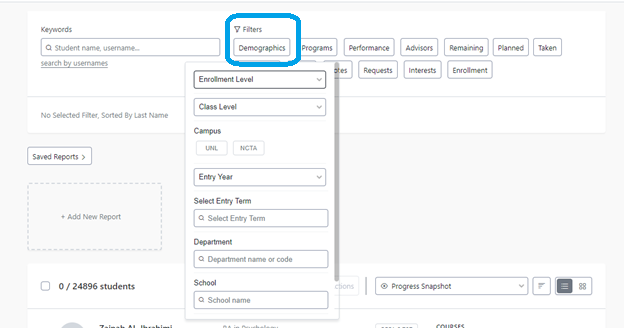
Identify students based on their academic program information, class standing, entry year, or student identifiers. The user can choose from the demographics listed to select a population of students.
- Enrollment Level: Student academic career (e.g. Undergraduate, Graduate, etc.)
- Class Level: Student class level (e.g. Freshman, Sophomore, etc.)
- Campus: UNL or NCTA
- Entry Year: The beginning of the academic year in which the student started their current career (e.g. the academic year for a student starting in Spring/Summer 2029 will be 2028)
- Entry Term: The semester that the student started their current career excluding visiting and intercampus enrollment
- Department: Student academic departments associated with their academic plans (e.g. majors, minors, certificates, etc.)
- School: Student academic programs (colleges) associated with their academic plans. This filter will return results that include every student enrolled in a major, minor, certificate, etc., owned by that college. To find students in a degree program within a specific college, type any part of the college name into Tags at the bottom of the Demographics Filter.
- Student Tags: UNL-defined student identifiers Stellic Tags
Conditions
When you click into the search box for a filter, a drop down with additional conditions will appear.
Contains any: Your results will include students who meet any one of the selected criteria.
Contains all: Your results will include only students who meet all of the selected criteria.
Does not contain any: Your results will not include students who meet any one of the selected criteria.
Does not contain all: Your results will not include students who meet all of the selected criteria.
You may see additional filters such as "is empty," "is not empty," or other conditions. These additional conditions will be more useful for identifying Peoplesoft errors than for finding students for which you need to take action.