Changing or Removing your Added Course before Enrolling
This tutorial will help you change any planned sections before you register. Below each area are written instructions with pictures.
- Changing Course Section
- Changing Course Topics
- Changing Course Section for a Component (Lab or Recitation)
- Removing Course
Changing Course Section before Enrolling
Click the course tile on the left-hand panel under My Courses or by clicking on the course tile in the calendar and selecting View Details, which will open up the right-hand side panel.
My Courses View

View Details

Course Details Opened
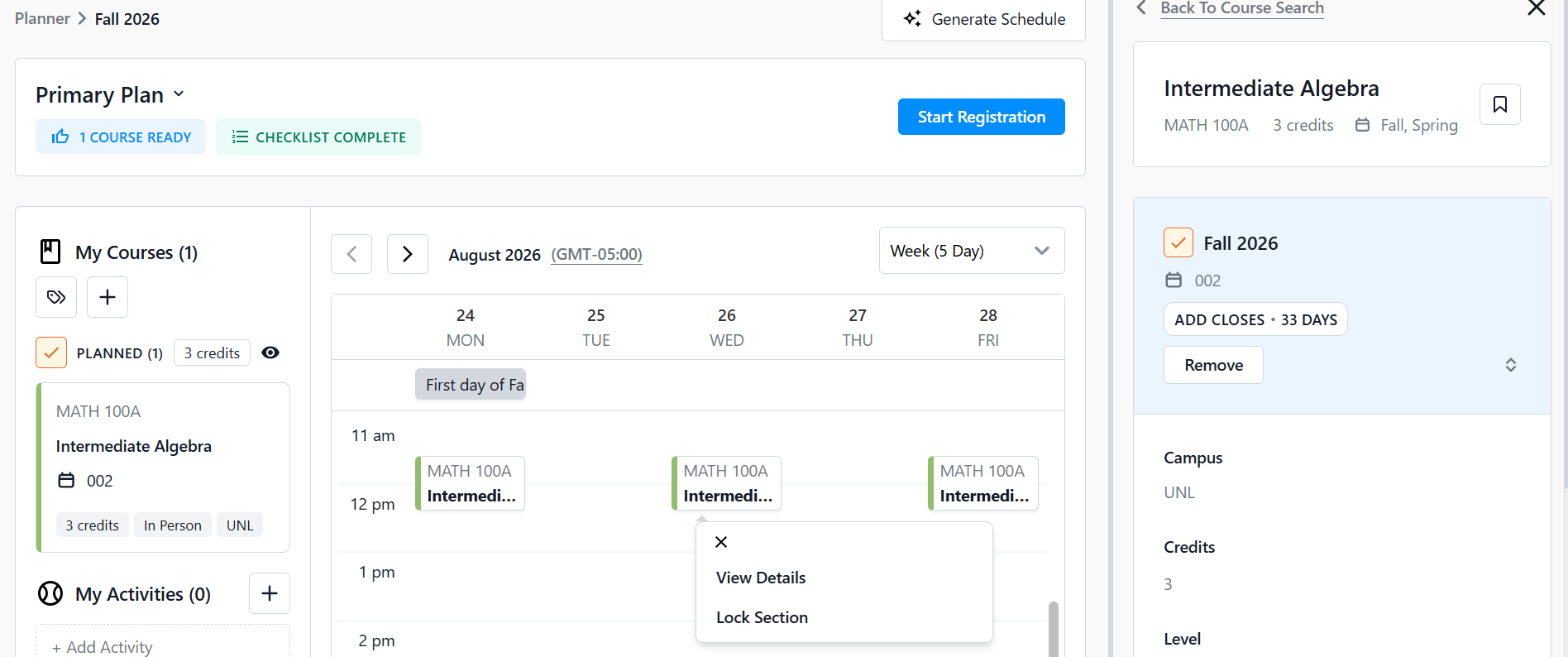
Scroll down the right-hand panel until you get to sections area. Your currently selected section will show first, highlighted blue with a check mark to the left of it.

Scroll down further to see other sections. You can click on the section to open up more class details.
In this example, sections 001 and 003 are closed with 0 seats left, while section 004 has 6 seats left. Once you click on the 004 section, it will open with the additional details.


Select the section you wish to change it to by clicking the '+' sign to the left of the desired section.

A green banner confirming the change will pop up across the screen. The right-hand panel will now show that the new section is selected and the section will update under the left-hand panel, My Courses.

Updated Class Details View

Updated My Courses view

Changing Topics of the Same Course before Enrolling
You can select a different topic of the same course before registering by clicking on the course again under the left-hand panel, My Courses and opening the right hand Course Details panel. Find the Topic field.
You will notice there is an Edit link next to the topic name. Click it to open back up the dropdown.

Select the new topic.

You will get a warning message. Click Change to proceed.

You can now select the corresponding section with the new topic by clicking the + symbol on the left part of the section row.
Changing Course Section for a Component Class before Enrolling
If the course has a recitation, lab, or other component section that must be taken with it, it will automatically select one for you. If you want to change the section at any point before registering, you can do so by clicking the course tile on the left-hand panel under My Courses or by clicking on the course tile in the calendar and selecting View Details, which will open up the right-hand side panel.
My Courses View

View Details

Course Details Opened
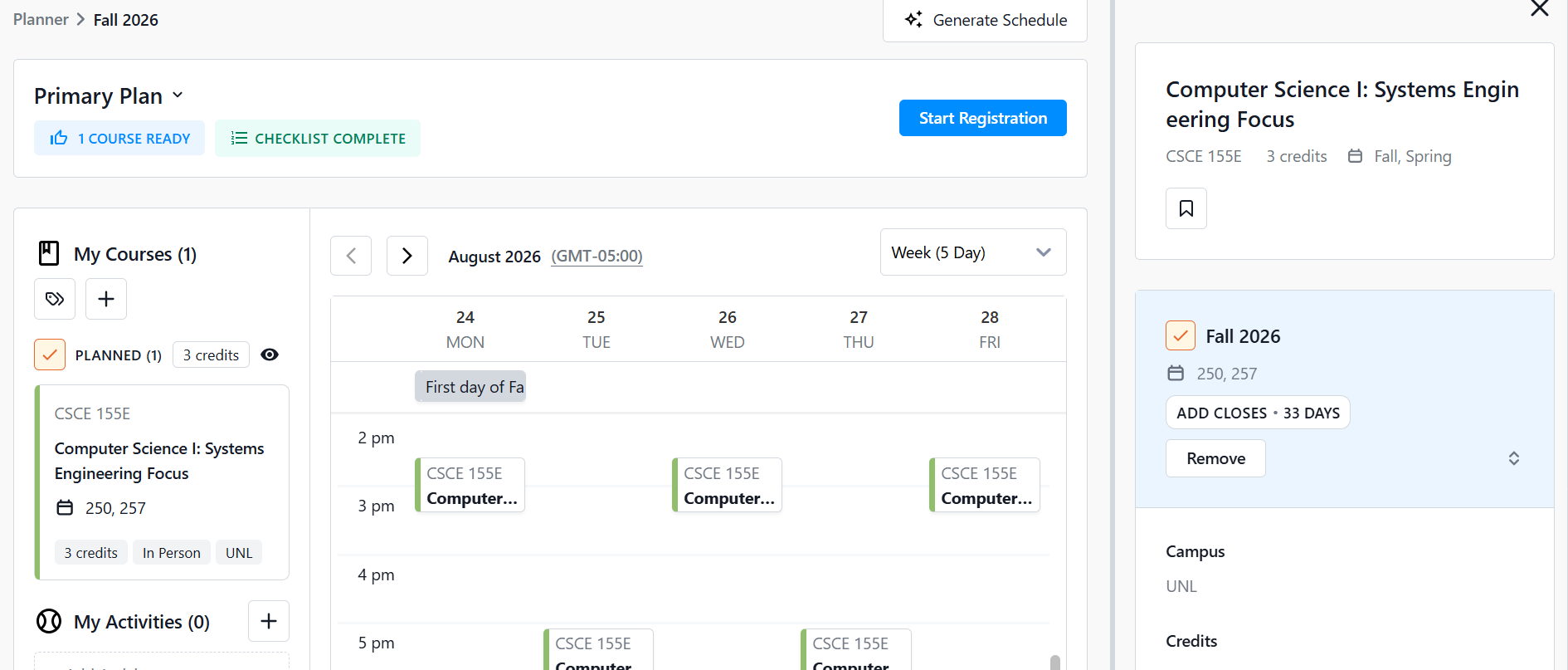
You then scroll down the right-hand panel until you get to the lab or recitation area. Your currently selected recitation will show first, highlighted blue with a check mark to the left of it.

Scroll down further to see other sections. You can click on the section to open up more class details.

Select the lab or recitation section you wish to change it to by clicking the '+' sign to the left of the section. It will then update your lab or recitation section. **NOTE:** If you choose a recitation or lab that is tied to a different lecture, doing these steps will also change your lecture. Make sure to review your changes before registering. If you have questions, contact your Academic Advisor.


Removing a Course from your Plan before Enrolling
If you want to remove a course from your plan before registering, click the course tile under the left-hand panel under My Courses or the course tile on the calendar and click View Details, which will open up the right-hand side panel.
My Courses View
View Details
Course Details Opened
Click the Remove button on the right-hand Course Details panel.

It will give you a warning. If you wish to continue removing it from your plan so you do not register in it, then click OK.
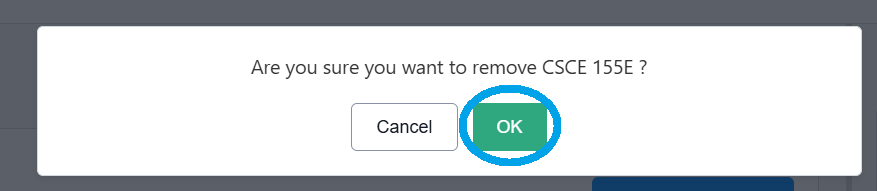
A green banner with a success message will pop-up across the top once it has been removed. The left-hand panel under My Courses will also update.