Dropping or Withdrawing from a Course using Stellic
Stellic allows you to drop your courses from your schedule. **NOTE:** Dropping a course does not remove it from your plan. Additionally, removing a course from your plan does not drop you from the course roster. Plans are used for planning purposes only, and do not designate registration. Courses you are enrolled in will have the Enrolled tag next to it. Please verify your enrollment in your MyRED Class Schedule.
How to Drop a Course
Navigate (see our tutorial at https://registrar.unl.edu/class-registration-tutorials/accessing-stellic-scheduler/) to your schedule in Stellic. Once your Schedule is open, you can either click on the course you wish to drop on the left-hand panel under My Courses, or, click the course tile on the calendar and select View Details.
My Courses (Left-hand panel) Example

View Details (On calendar) Example

This will open the right-hand panel with the course details. You will see an Actions button under the drop deadline for the course.

Click the Actions button. This will now give you several options. To drop the course, select the Drop Course option.

Once you select Drop Course, you will get a pop-up confirmation box asking you to confirm the drop. All sections numbers for the sections related to the drop (including labs and recitations) will show as part of the drop. Click Confirm to continue the drop. Click Cancel if you have changed your mind.

After clicking Confirm, you will see the drop being processed by Stellic.

Once the drop has been completed, you will get a confirmation status showing any successes or errors, as well as which course(s) you dropped. If you run into any errors dropping your class and you are unsure why, contact your Academic Advisor.

You will now see that your course has been moved to the Planned section on the left-hand panel under My Courses instead of the Registered section. If you click on the class details. The course will no longer say it is Enrolled and the Actions button has disappeared.
Updated My Courses View

Course Details Right-Hand Panel Updated View

Removing a Course from your Plan
If you would like to remove the course from the scheduling page altogether after dropping it, you will need to remove it from your plan. Follow the steps written above except after clicking the actions bar, select Remove from Plan. This will remove the course from your plan. Again, note that this does not remove your enrollment in the course. We suggest only removing courses from the plan if you have already dropped it or prior to enrolling in your courses.

How to Drop Classes in MyRED
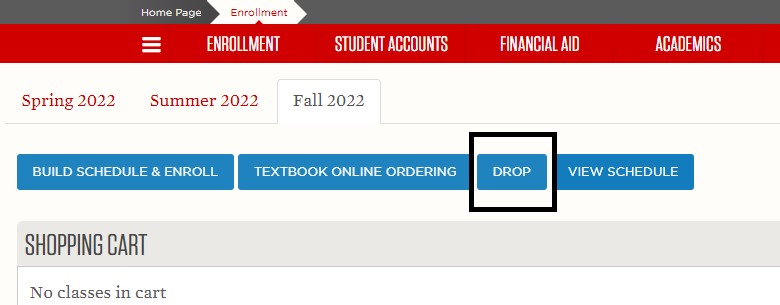
Navigate and click the Enrollment tab in your MyRED. On the Enrollment page, click the appropriate term tab and then the DROP button.
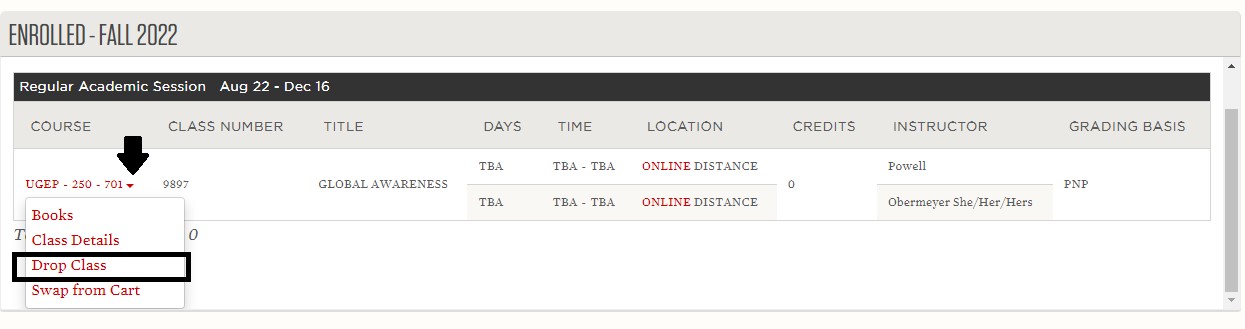
A list of your courses for the selected term will appear. Find the course you wish to drop and click the little arrow icon to the right of the course to bring up a drop-down menu. Click Drop Class from the drop-down menu.
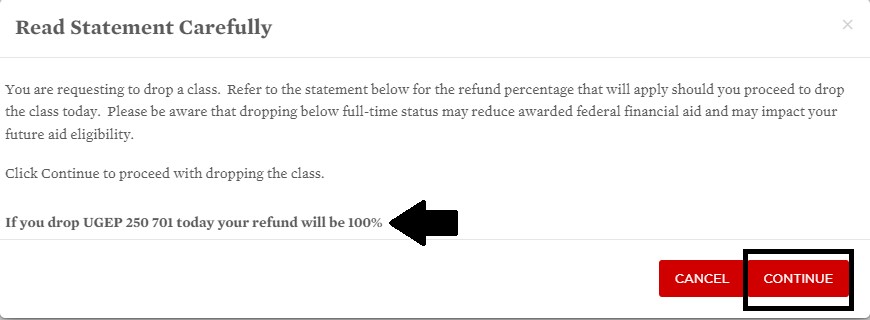
Review the financial statement and refund rate listed. Click Continue to drop the course. If you have questions about the financial implications of dropping a course, please contact Husker Hub at 402-472-2030.
You have successfully dropped the course. If you receive an error message, please contact your academic advisor for assistance.