Submitting Change of Degree Major Advising (CDMA) Forms
A CDMA is submitted by a college official (usually an academic advisor) of the college whose program the student is adding. Advisors will review students' eligibility to make these changes before submitting forms. Students wishing to make changes to their majors or minors should meet with the academic advisor for the desired major or minor in order to start this process.
Starting the CDMA Process:
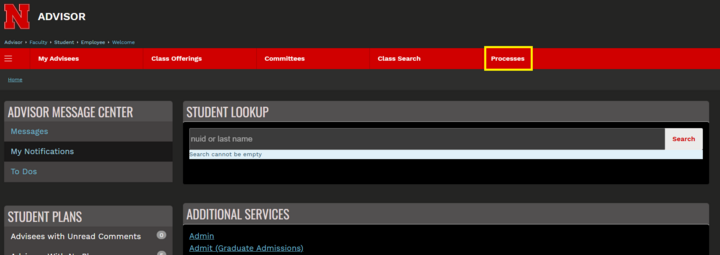
- In your Advisor view in MyRED, click on the Processes tab.
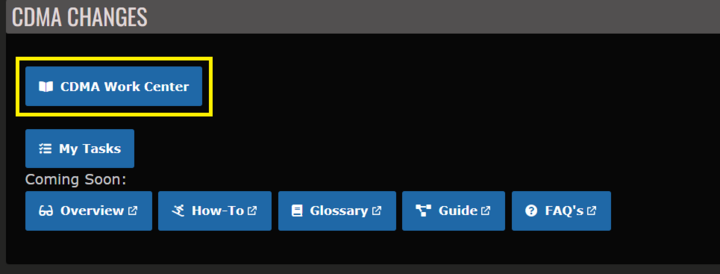
- Click the CMDA Work Center button to open the CDMA Work Center.
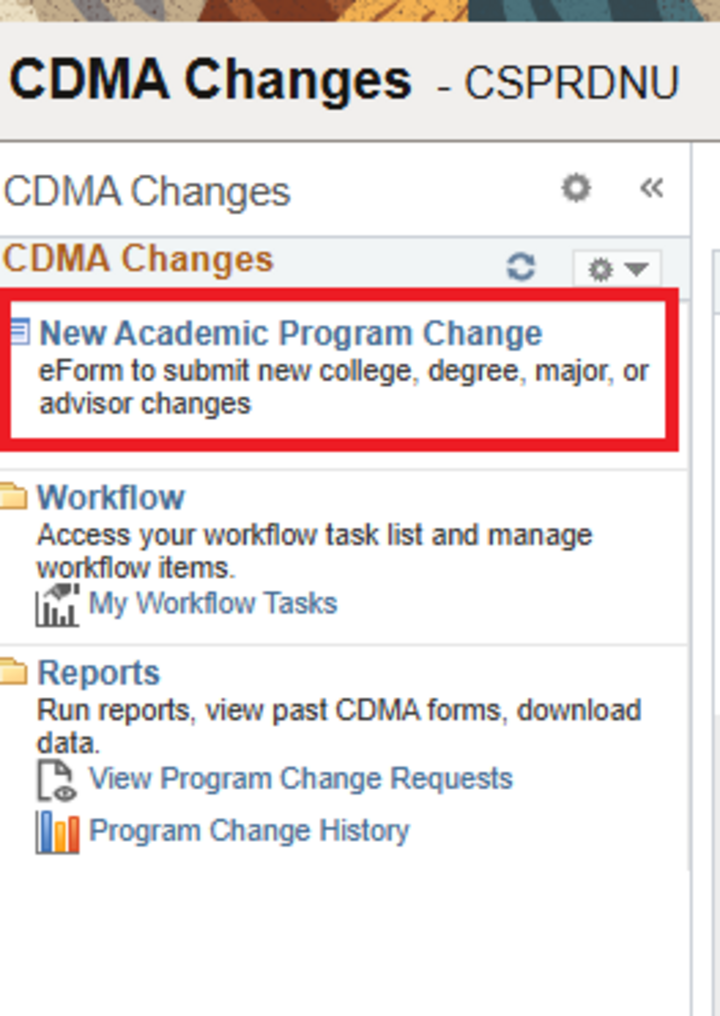
On the left-hand side of the page, choose New Academic Program Page to open the e-form.
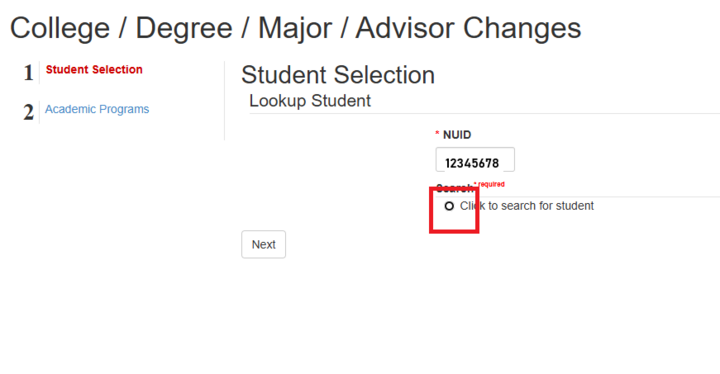
- Enter the student's NUID and click the Click to search for student radio button. You may have to click the radio button twice for the student's information to appear.
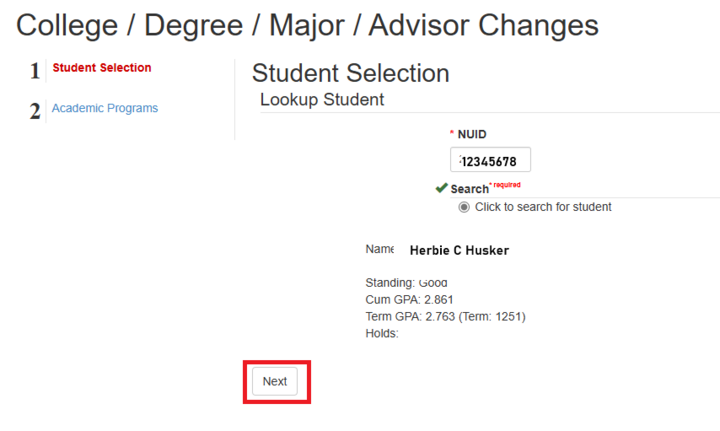
- The student's name and GPA will then appear. Click the Next button.
- The next steps are determined by what you need to do for the student:
- Changing a College, Major, and/or Advisor
- Adding a Minor, Second Major, Dual Matriculation, or Certificate
- Adding or Editing a Prep-Plan
Changing a College, Major, and/or Advisor
- After the student has been selected and the rest of the e-form populates, working from top to bottom, update the drop-down boxes with the appropriate selections. Many majors will require you to choose both a Plan and a Sub-Plan.
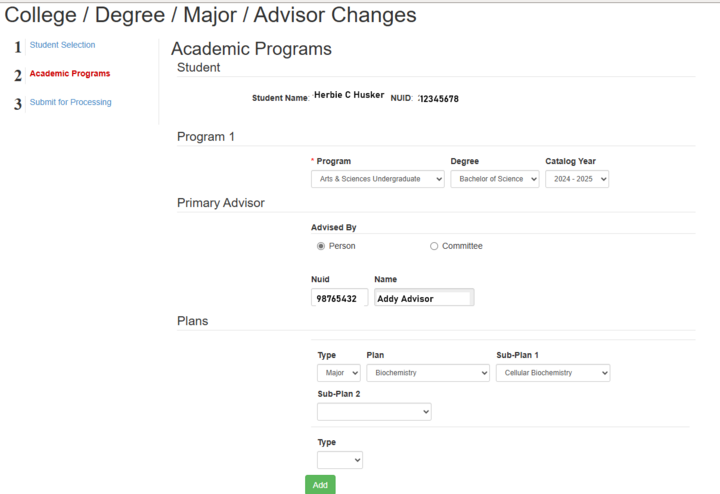
If you are only changing one of the above and everything else is staying the same, you only need to change Program, Primary Advisor, or Plans.
Adding a Minor, Second Major, Dual Matriculation, or Certificate
Adding a Minor
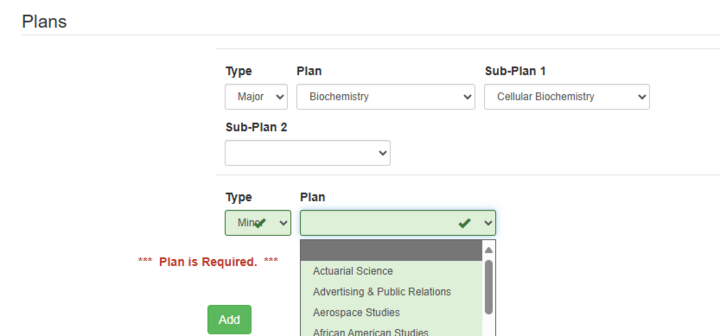
- In the Program 1 section, select "Minor" in the Type drop-down under Plans. If you do not see a blank "Type" drop down, click the green Add button in the Plans section you are working in.
- Choose the desired minor in the Plan drop-down that appears.
Adding a Second Major in the Same College
- Under Program 1, click the Type drop-down in the Plans section.
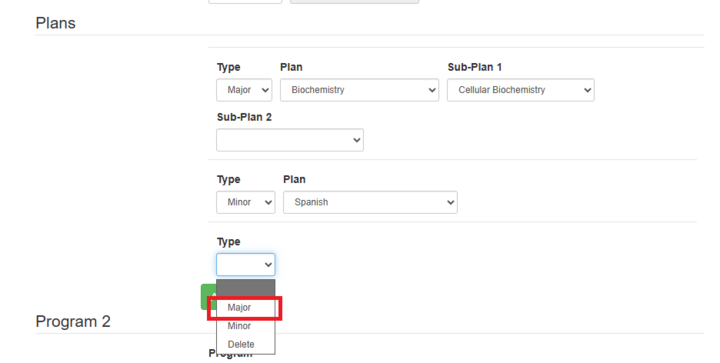
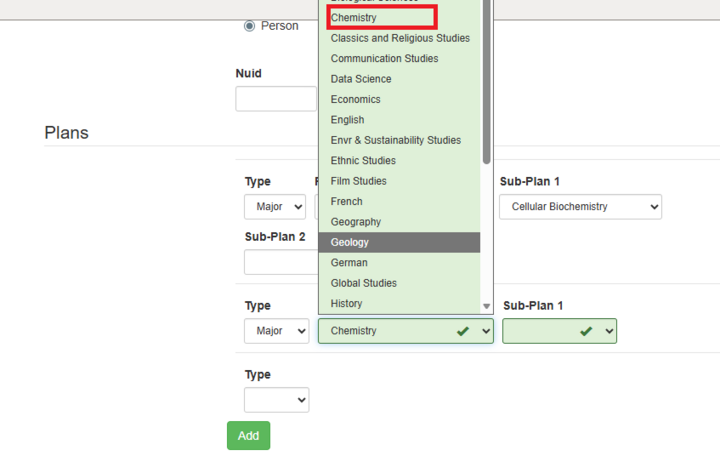
- Choose the appropriate Plan from the dropdown menu.
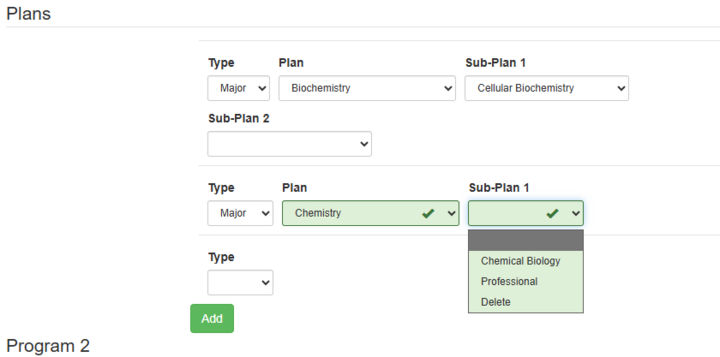
- Choose a Sub-Plan if provided (do not choose Delete).
Adding a Dual Matriculation (Second Degree)
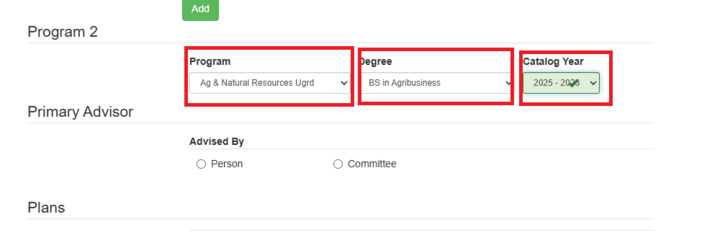
- In the Program 2 section, use the Program, Degree, and Catalog Year dropdowns to add the second degree.
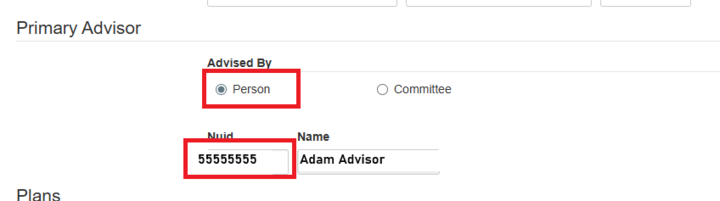
Still under Program 2, assign the appropriate advisor for the dual matriculated degree by choosing the Advised by Person radio button and entering their NU ID.
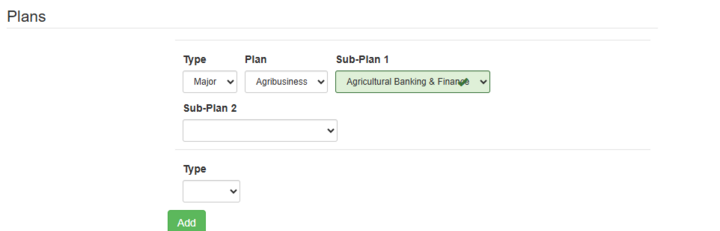
- Still in the Program 2 section, select "Major" in Type under Plans and choose the appropriate major from the Plan dropdown. Choose a Sub-Plan, if required.
Adding a Certificate
- In the Program 2 section, choose "Undergraduate Certificate" in the Program dropdown. For the Degree dropdown, choose "Certificate" and then choose the appropriate Catalog Year under its drop-down.
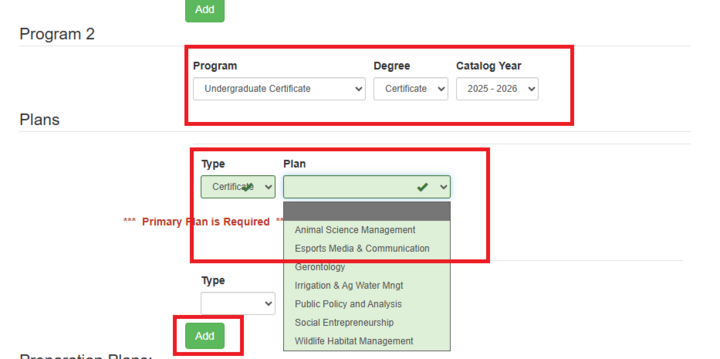
- Then click the Add button.
Adding or Editing a Prep-Plan
- Once the e-form loads, scroll all the way down to the bottom of the Academic Programs page to find the Preparation Plans section.
- Change the Prep-Plan(s) accordingly using the Prep-Plan 1 and Prep-Plan 2 dropdown.

If they want to delete a Prep Plan they already have on their record, choose "None" in the dropdown. Please do not choose delete.
NOTE: The only time a Prep-Plan should be selected in both Prep-Plan 1 and Prep-Plan 2 drop-downs is if the student is both Pre-Health and Pre-Law.
Submitting the Form:
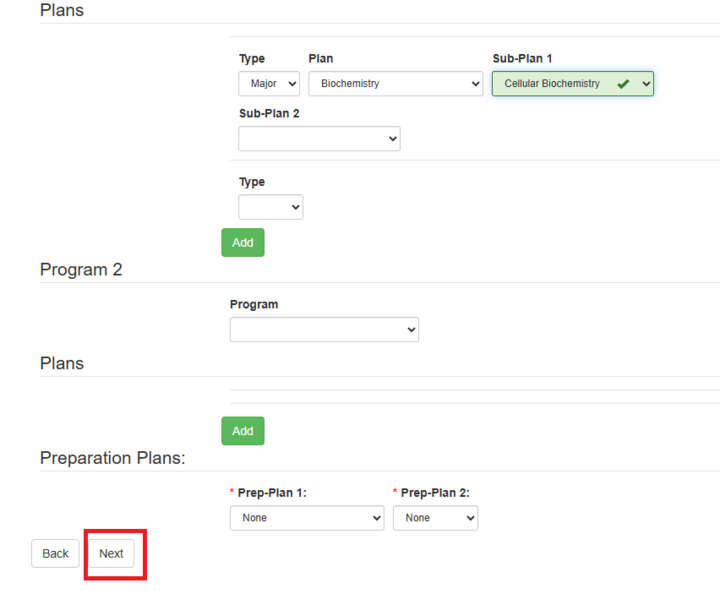
- When you are done making changes, choose Next at the bottom of the page.
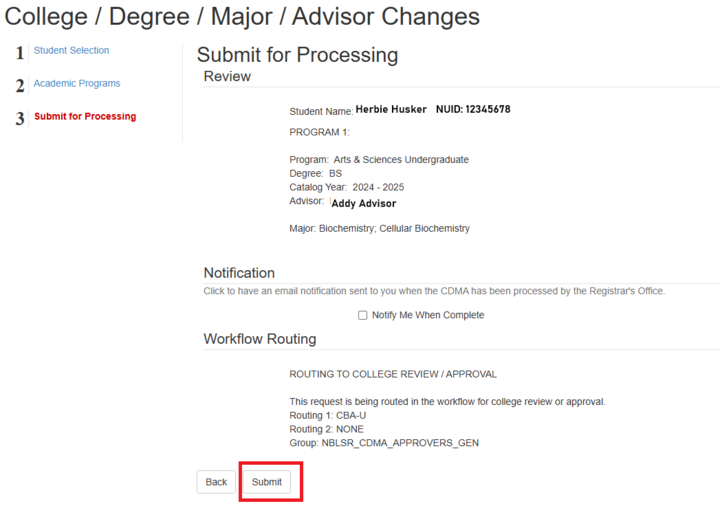
- Review your changes on the next page and choose Submit.