Viewing Student FERPA Release Information
Last Updated: July 5, 2024
Step 1.
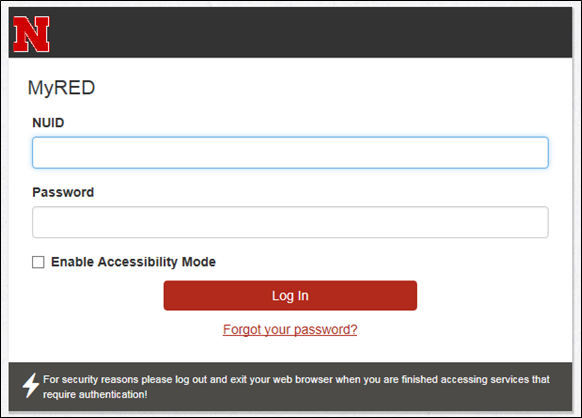
To begin, login to MyRed using your NUID and password.
Step 2.
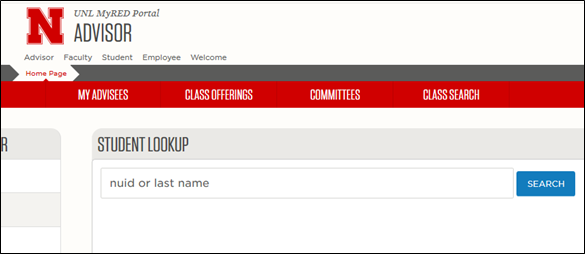
Make sure you are on the Advisor tab. You can view FERPA information by searching for the student, on the “My Advisees” tab, or the “Committees” tab.
Step 3.
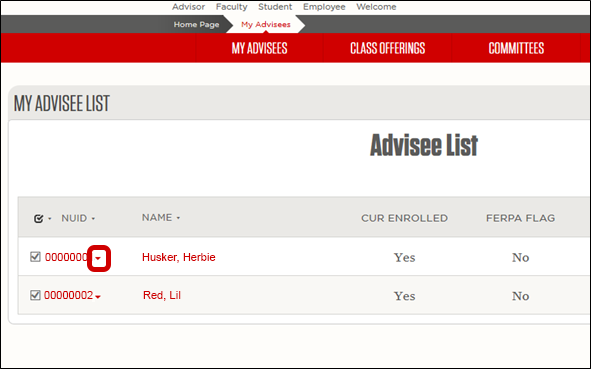
Once on the “My Advisees” Tab, you should see your Advisee List. Locate the student and click the drop down arrow by the NUID.
Step 4.
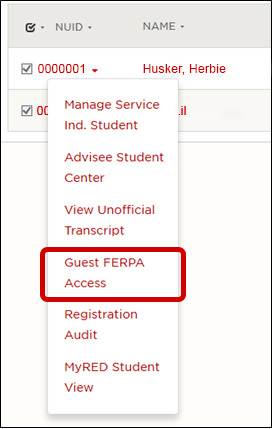
Choose the Guest FERPA Access link from the drop down menu.
Step 5.
A pop-up window will appear. Verify the Academic Institution and Student ID and click Search.
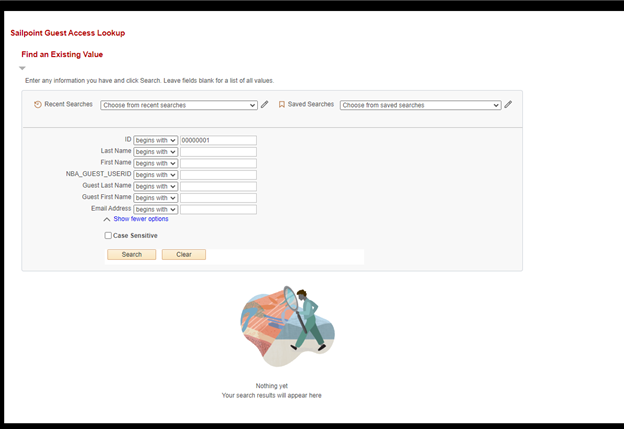
Step 6.
If a student has created a Parent/Guest Account the account will be visible as shown below.
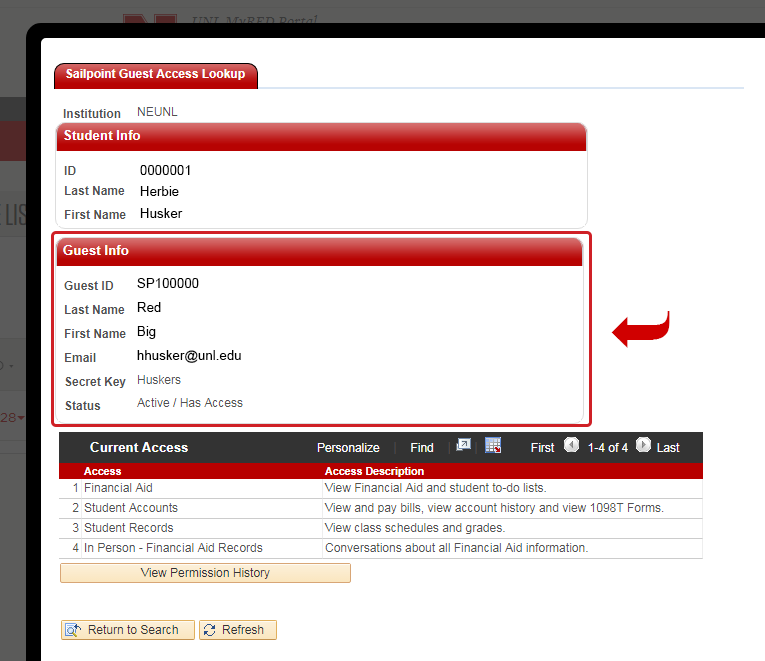
Step 7.
You can view the guest access history by clicking the View Permission History link.
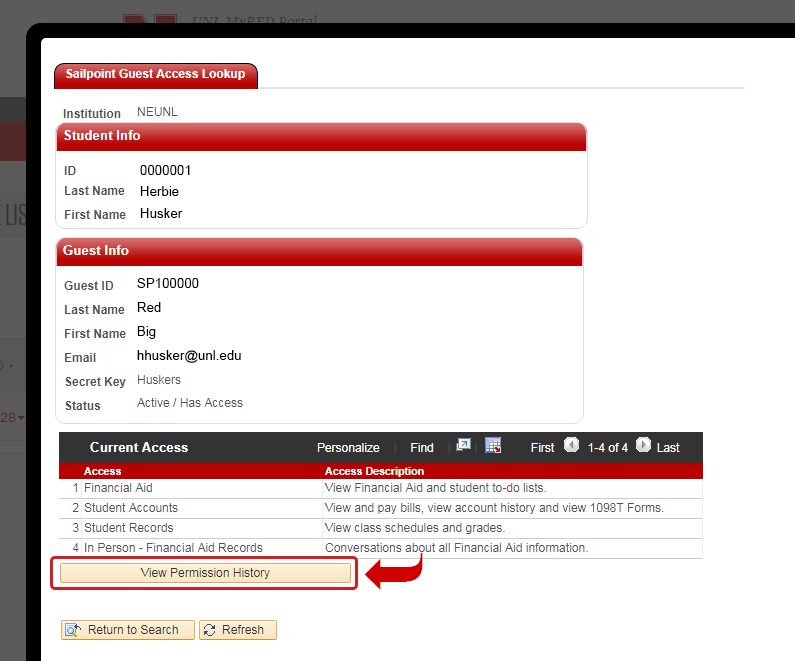
Step 8.
The Guest Access History shows the Date and Time the account was created, the Full Name of the person the access was granted to, Telephone number and Email Address, the Access that have been granted (both In Person and Online), Added Accesses, Removed Accesses, and a What Changed column.
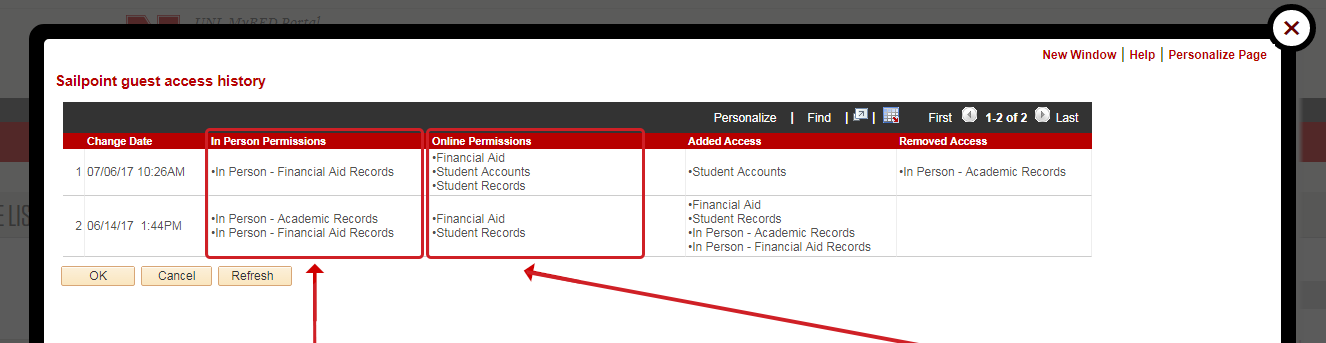
Options to be granted to Parent/Guest account for In Person or Phone/Email conversations:
- Student Account Records: Billing, account history, and 1098T forms.
- Student Records: Class schedules and grades.
- Personal Information: Addresses, phone numbers, email addresses, and student to-do lists.
- Financial Aid Records: Financial aid and student to-do lists.
Options to be granted to Parent/Guest account for Online Viewing:
- Student Accounts: On-line bill payment, view bills, view account activity, view payment history, and 1098T forms.
- Student Records: View class schedule and final grades.
- Personal Information: View addresses, phone numbers, email addresses, and student to-do lists.
- Financial Aid: View financial aid & student to-do lists.
** If 'in person' or 'on the phone' or 'email' communications have been authorized by the student as identified in the In Person column, the parent/guest will need to prove to the satisfaction of the office representative that they are who they purport to be. This may be accomplished by any and all means available including, but not limited to, questions verifying identity, photo id, telephone, email address, and secret key.**
Step 9.
When a student deletes a Parent/Guest Access it will show the guest access id and say “Deleted” in red. Clicking on the link you will allow you to see the time and date the student deleted the account.