Last updated on February 2021
Follow these steps if you need to change a grade that has been posted to a student’s record.
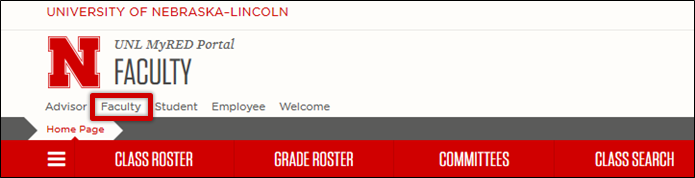
- Log into MyRED using your NUID and TrueYou password. If you are not on the Faculty tab, click on the word Faculty.
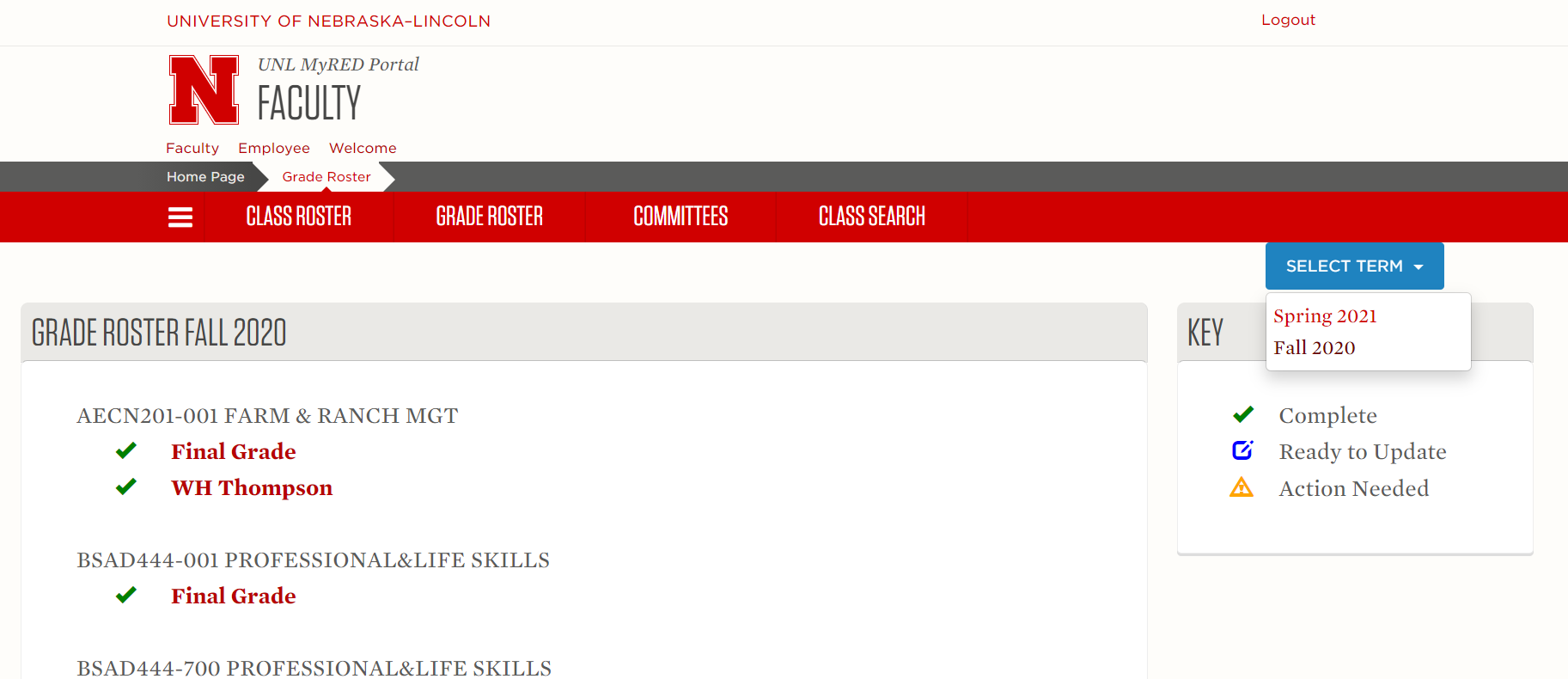
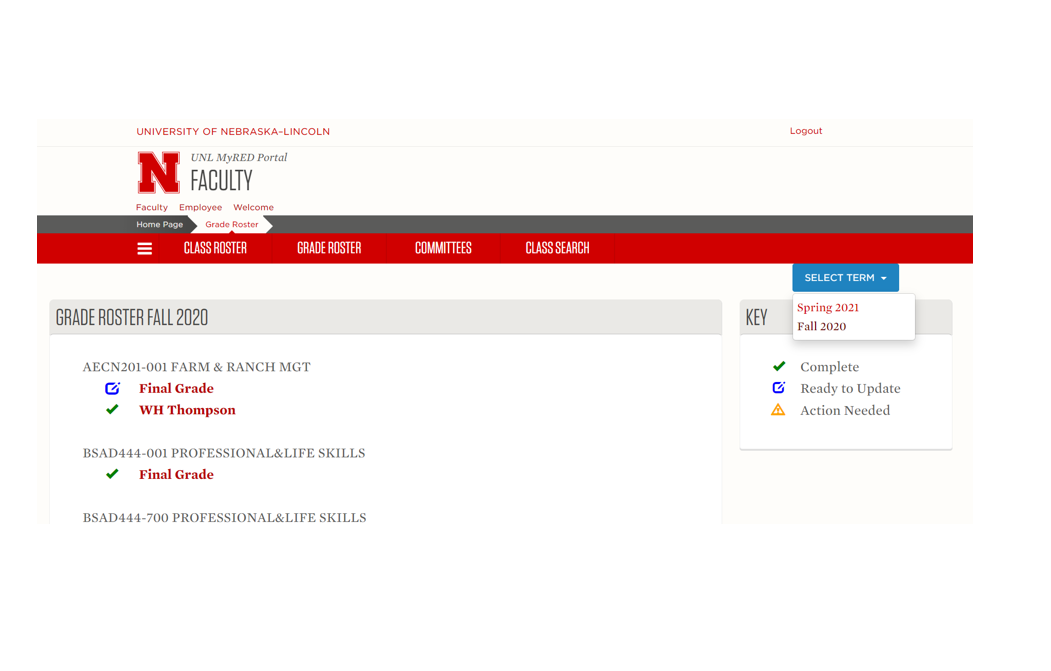
- To view your grade rosters, click on the Grade Roster tab.

- Find the class/section the student was enrolled in. Click on the Final Grade link listed under the class. To change the term and see previous Grade Rosters, click on the drop-down box to find past terms. To change the term and see previous Grade Rosters, click on the drop-down box to find past terms.
- A box will open up within the browser, select the Request Grade Change link.
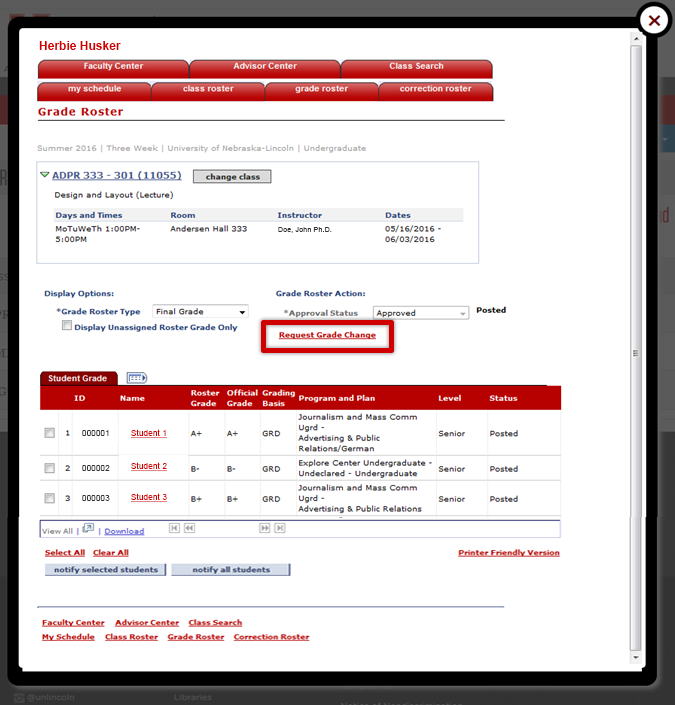
- Change the desired original grade(s) by clicking the drop-down box in the Official Grade column and selecting the new grade.
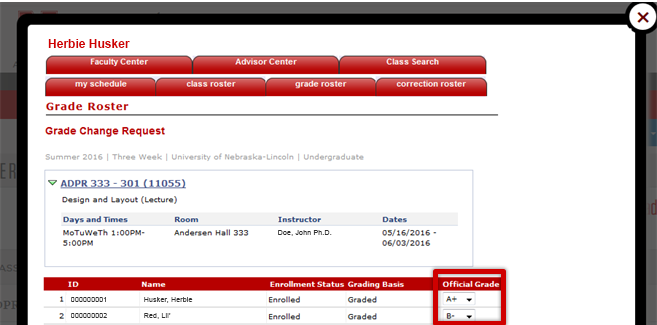
- Click Submit at the bottom of the page when you are done making edits.

- “Success” will appear next to the grade after the official grade has been successfully changed!