The Mid-Term Grade Roster allows you to enter mid-term grades for specified groups of students.
Navigate to your Grade Rosters
- Open your web browser
- Go to www.unl.edu
- Hover over the About section found on the red banner across the top and click Faculty/Staff Services, then click on the MyRED link
- Enter your NUID number in the NUID field
- Enter your TrueYou password (the same password used to access Firefly)
- Click Sign In
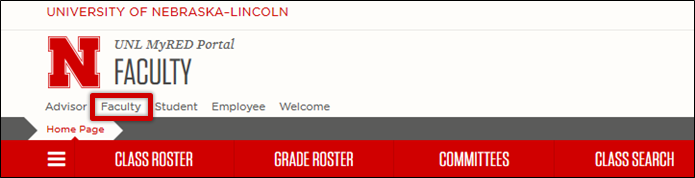
- When you log onto MyRED, if you are not automatically on the Faculty tab, you can access it by clicking on the Faculty link.
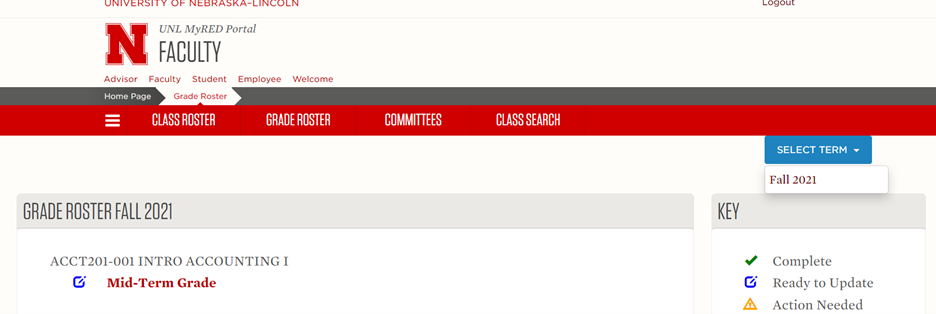
- Click on the Grade Roster tab

- Find the class/section you want to enter grades for, then click on Mid-Term Grade listed under the class. If your class/section is not appearing, use the Select Term drop down to reselect the current semester (pictured below).
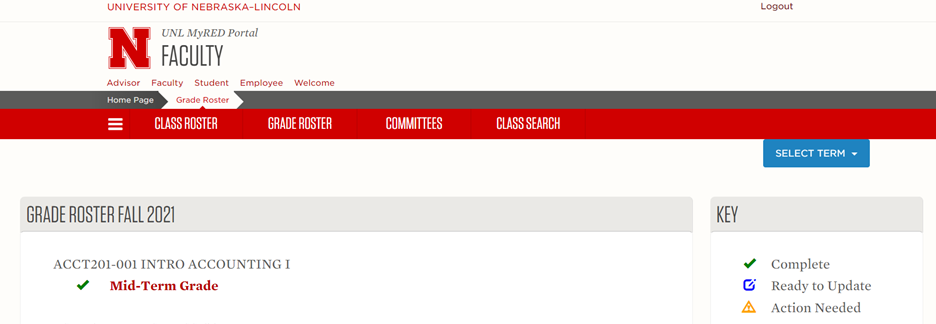
Please note the key with grade roster status. This indicates action required on rosters. Complete indicates all grades have been submitted. Ready to Update indicates the roster is ready for input. Action Needed indicates roster changes have been started and need to be completed.
- A box will open up within the browser
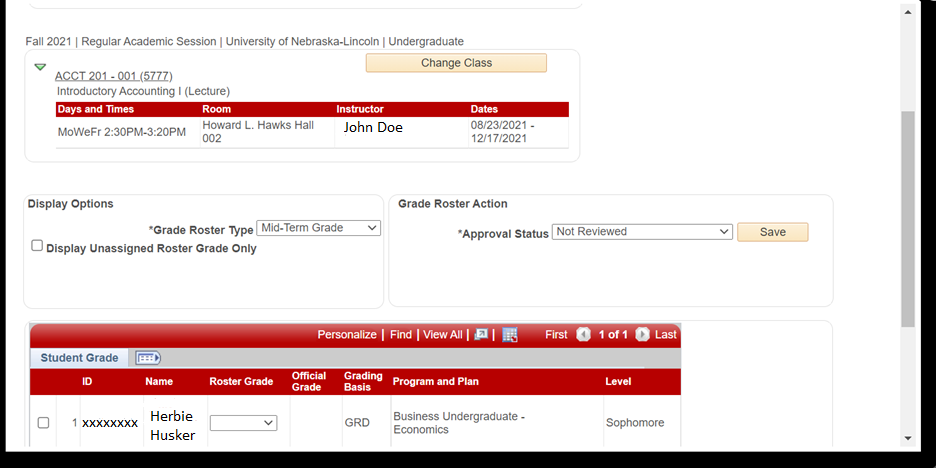
- Enter Mid-Term Grades
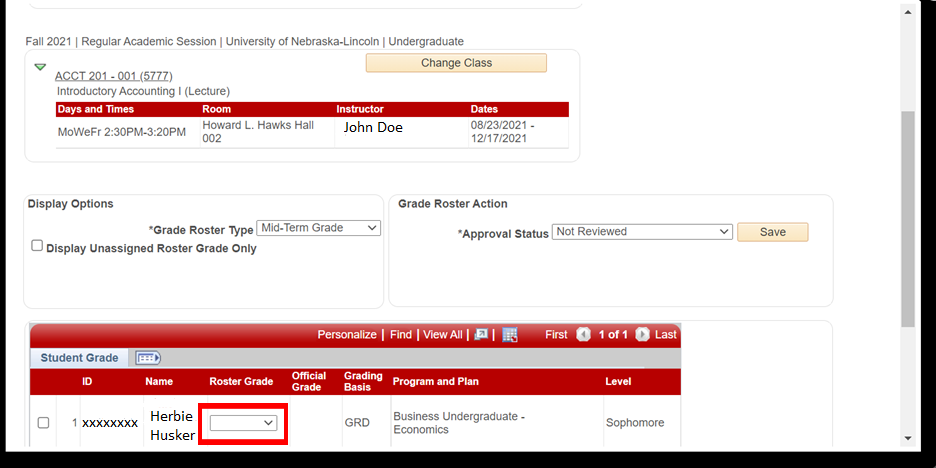
Note – If you have only assigned grades to part of the roster, you can save and come back and finish at a later time.
OR
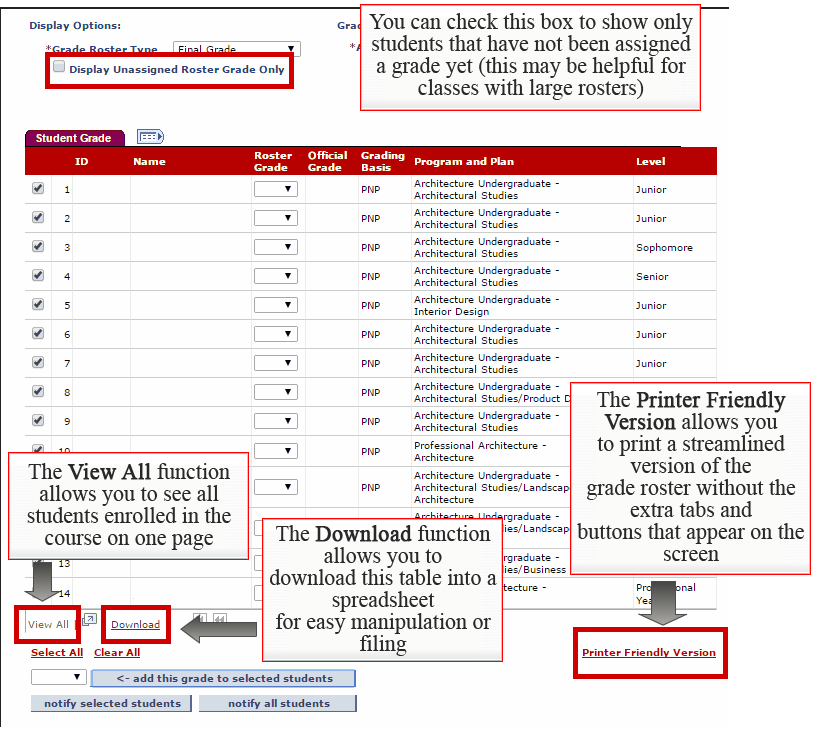
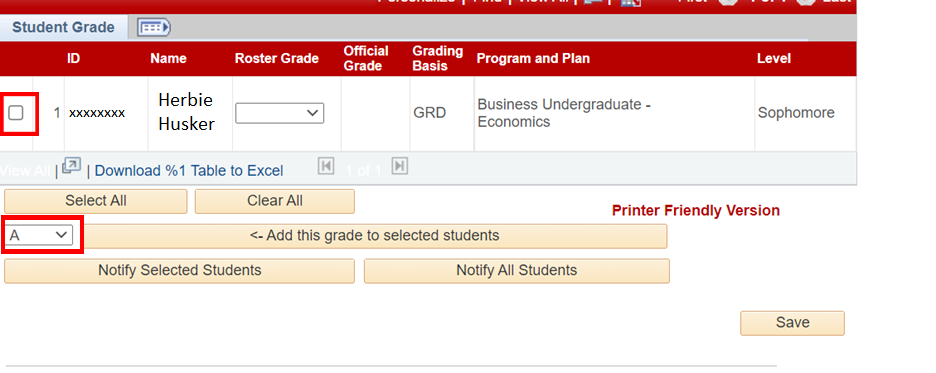
You can input grades for multiple students that received the same grade by clicking the box next to the student’s number, choose the grade from the drop-down box indicated in the example below, then click add this grade to selected students.
- Approve Grades
When the grade roster is complete with all grades entered, select Approved from the Approval Status drop-down box, then click Save so the grades can be posted.

Once you have saved your grades for a particular class, close the Grade Roster box by clicking on the red X in the upper right-hand corner to return to the Grade Roster tab so that you may access other rosters. Notice the roster status has changed to complete.
STEPS FOR NO GRADES TO ENTER
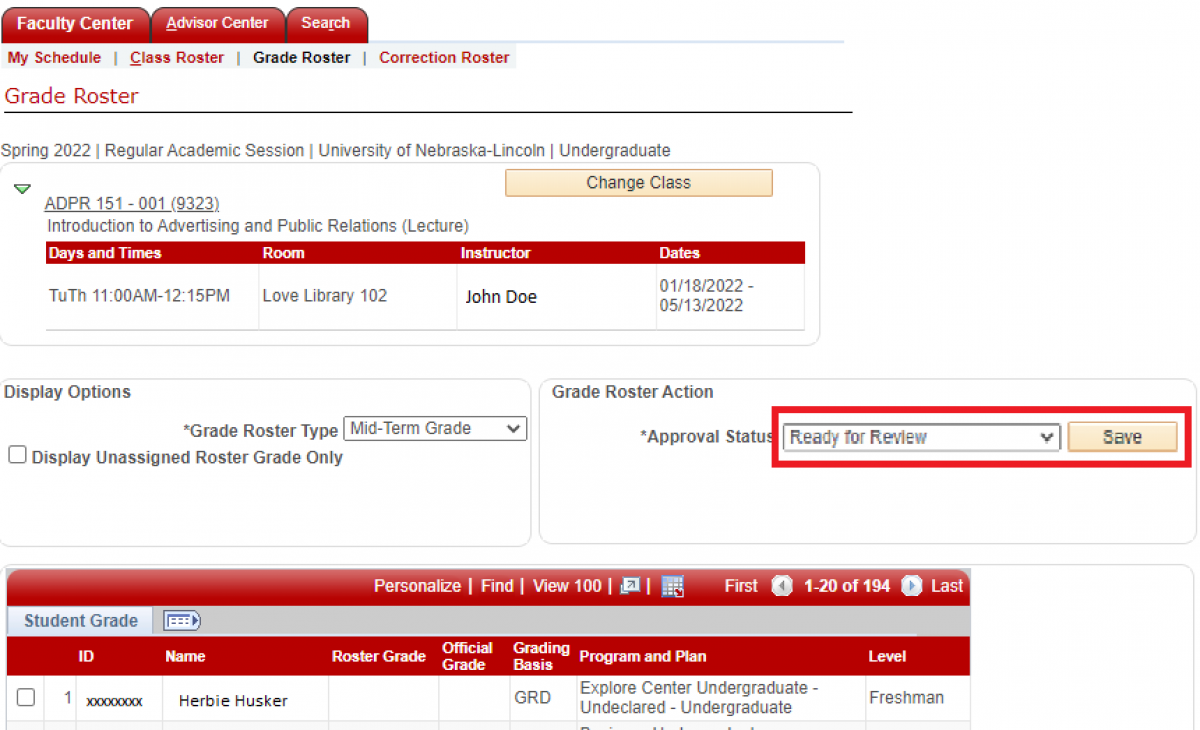
If you do not have mid-term grades to enter, you can change the approval status to Ready for Review without entering grades and click save.
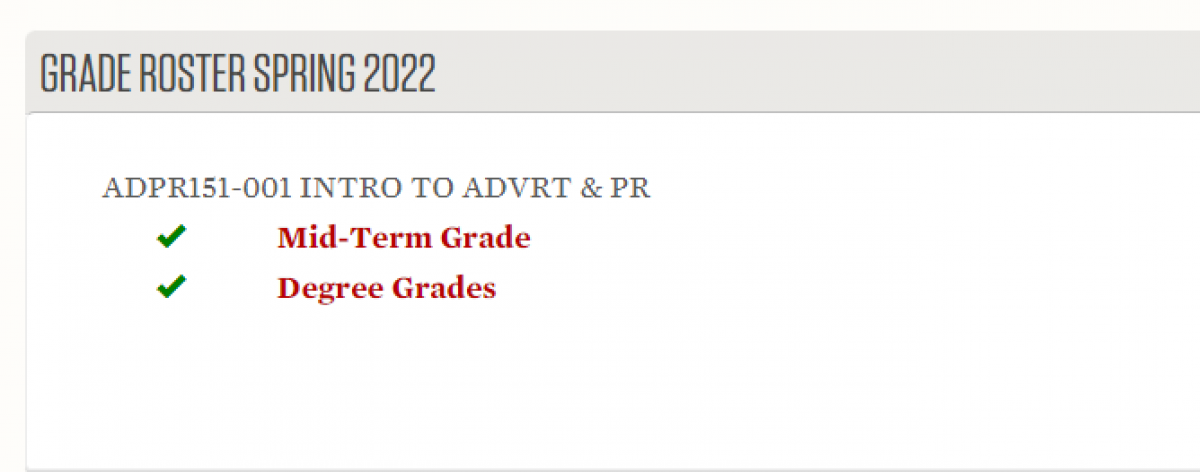
The Mid-term grade status will change to complete.
Additional Information
- You can check the "Display Unassigned Roster Grade Only" box to show only students that have not been assigned a grade yet (this may be helpful for classes with large rosters)
- The View All function allows you to see all students enrolled in the course on one page.
- The Download function allows you to download this table into a spreadsheet for easy manipulation or filing.
- The printer friendly Version allows you to print a streamlined version of the grade roster without the extra tabs and buttons that appear on the screen.