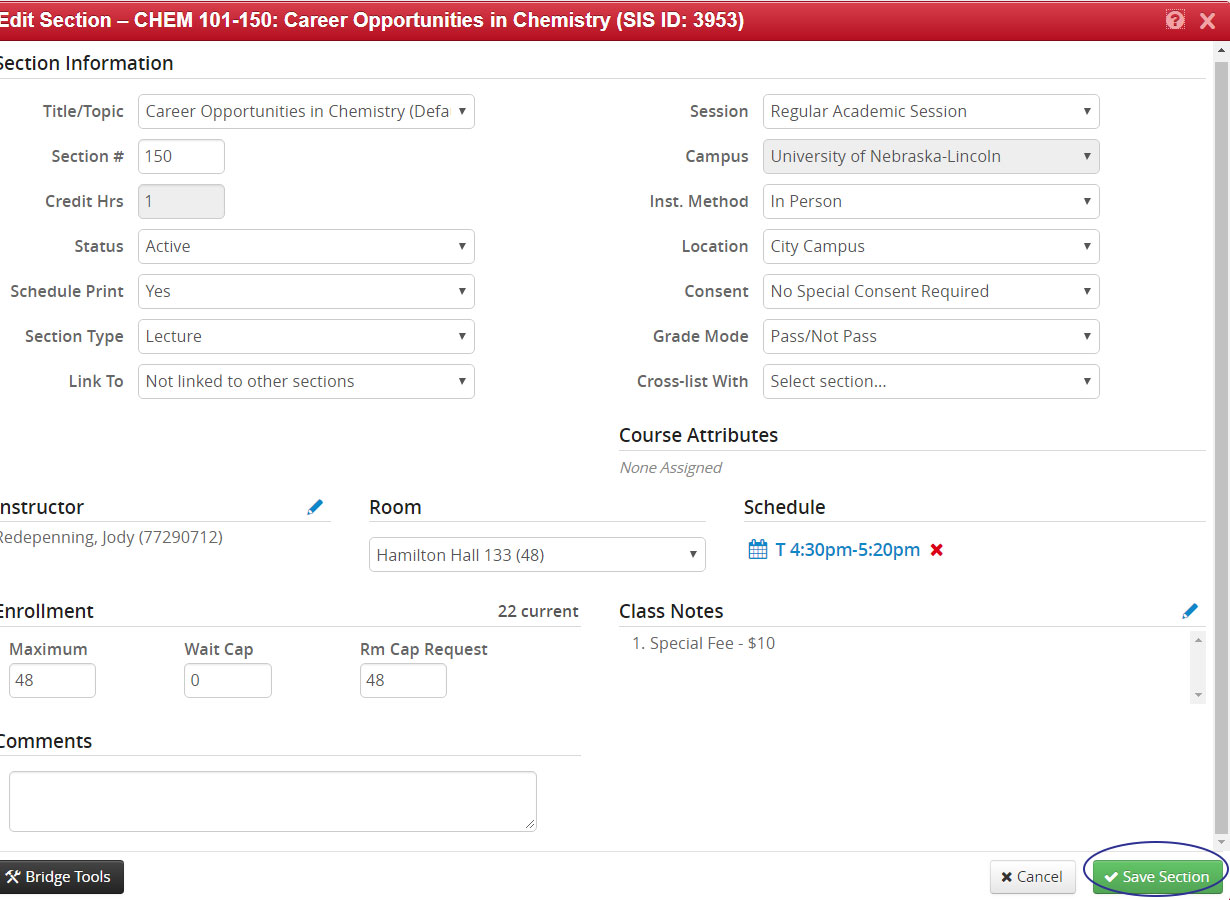
Class notes are used to convey information to student regarding information specific to a section. Class notes may also be approved course fees to charge for the section.
Class notes are to be used from term to term and various classes. Specific dates, names, etc. are not to be used as they are not transferrable from term to term.
Notes are picky! They must be the exact character usage as what is in MyRed.
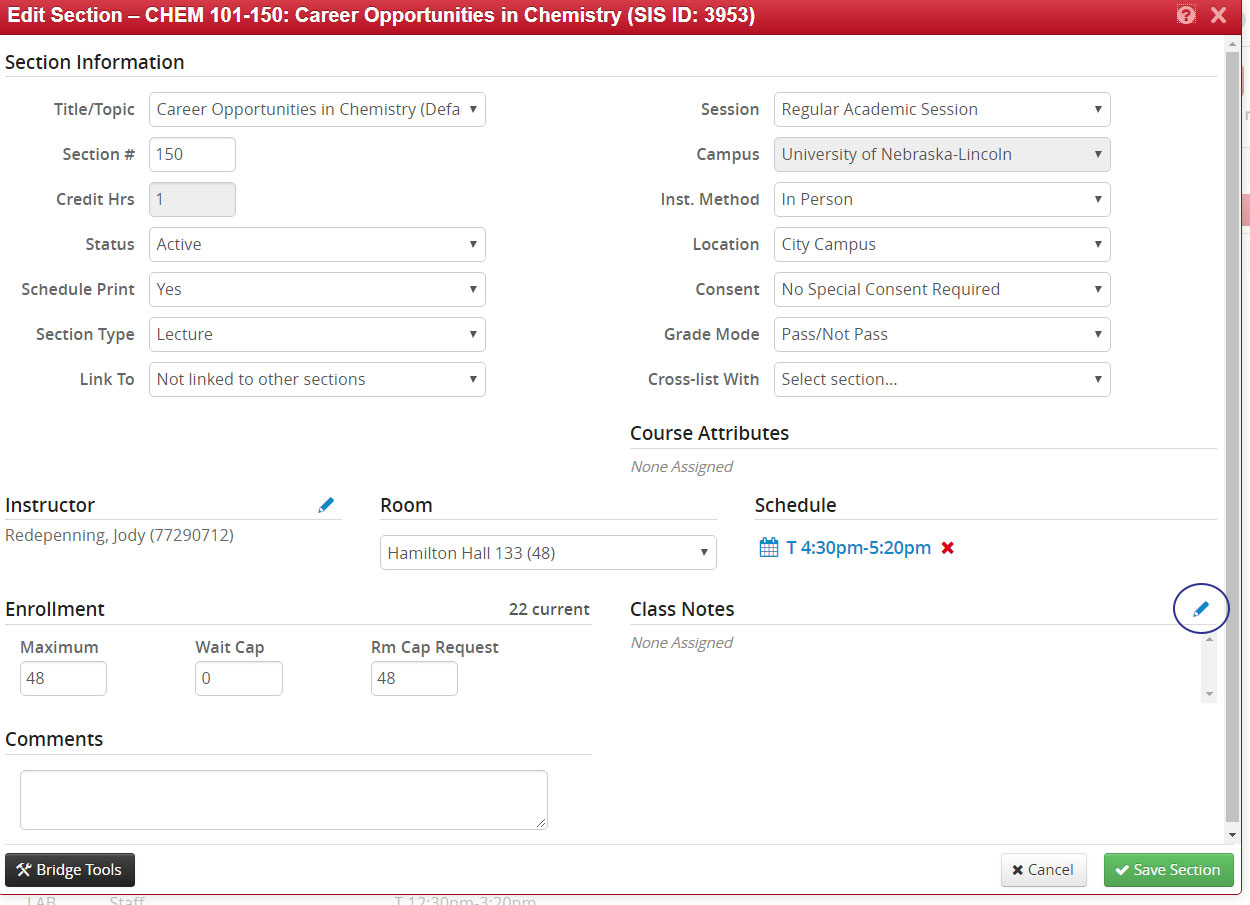
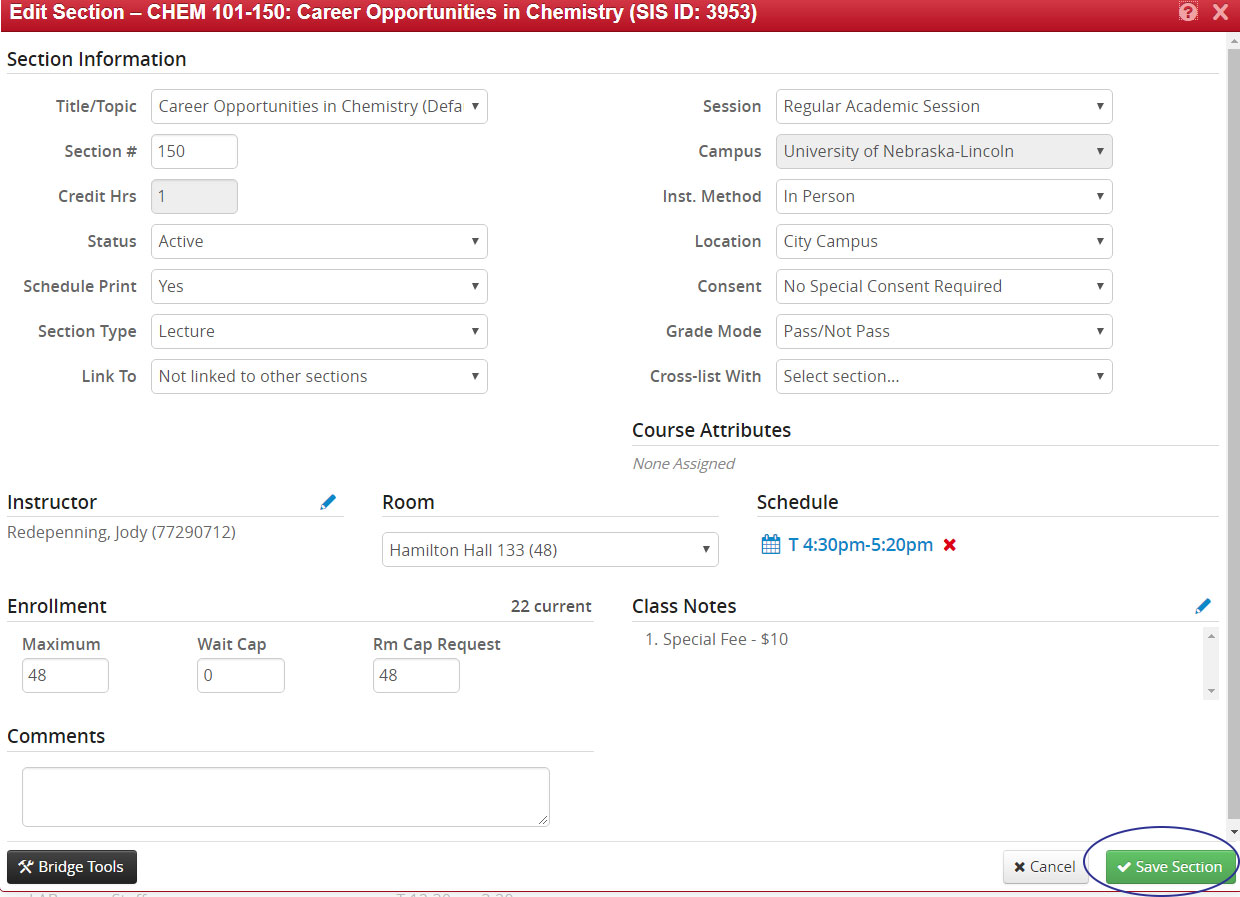
Click the pencil icon to the right of Class Notes.
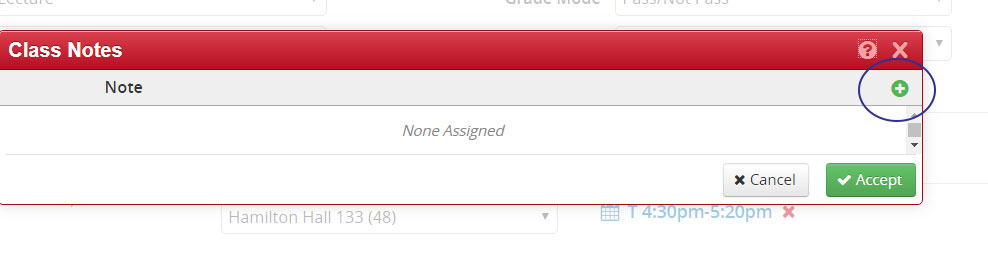
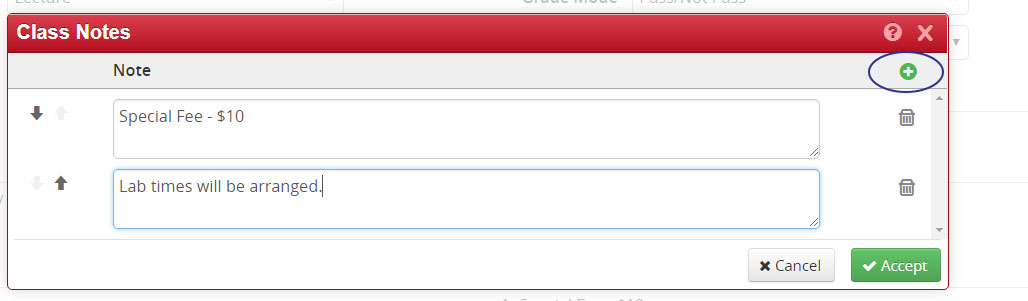
Click “+” to add the note.
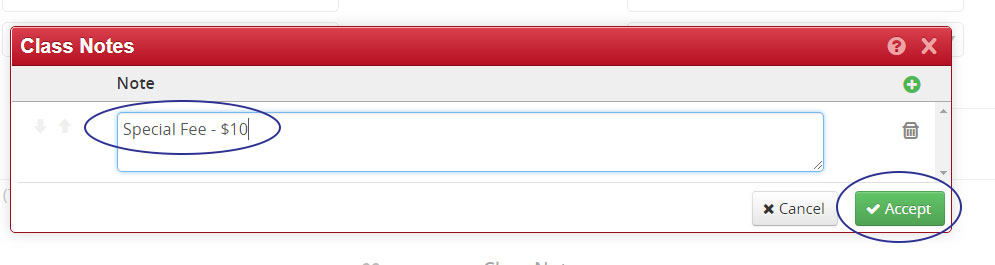
Copy and paste note (copied from https://registrar.unl.edu/faculty-staff/CLSS/class-notes/). Once edits have been made, click Accept.
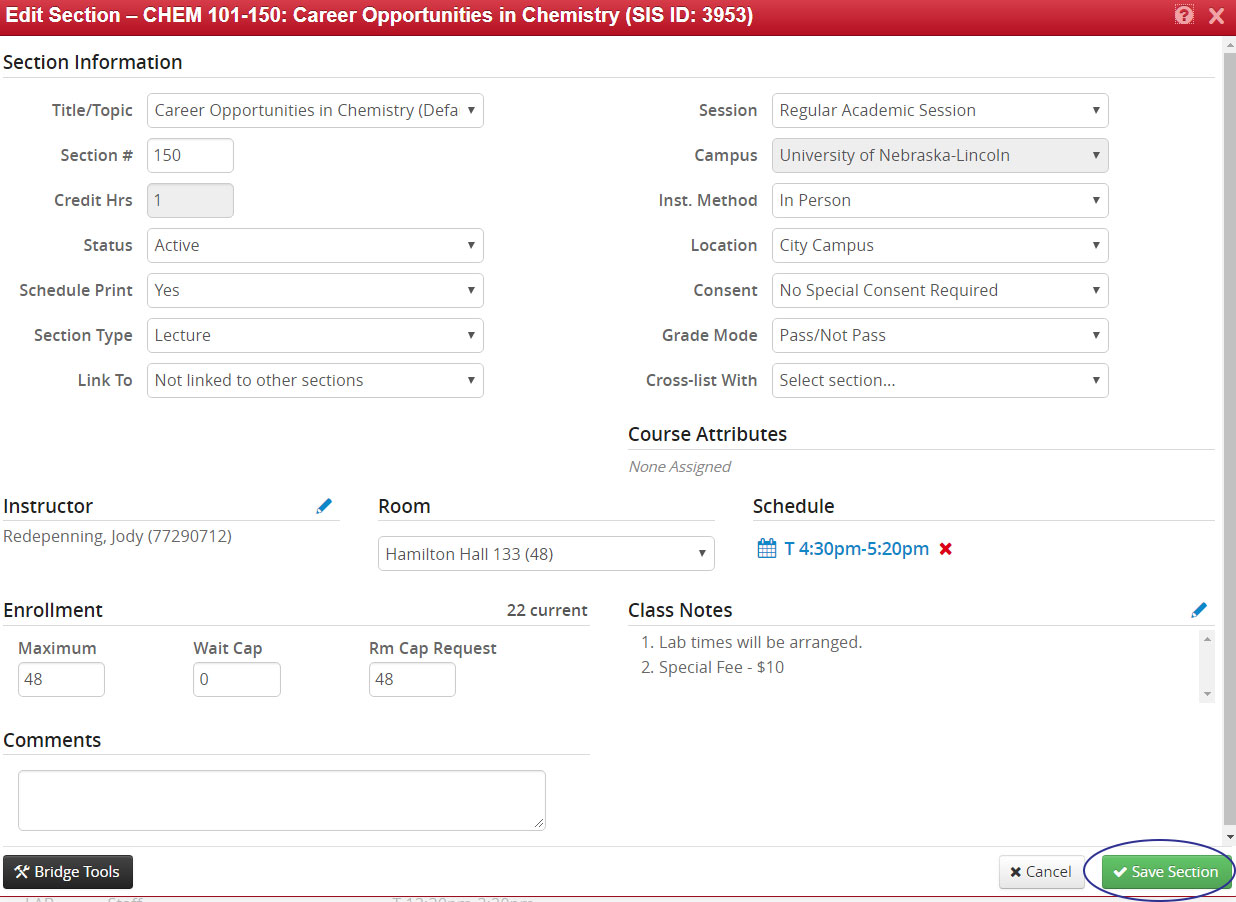
The note now appears in the Class Notes section. To save all changes for the section, click Save Section and initiate workflow.
Multiple notes can be added. Click the “+” to add additional notes.
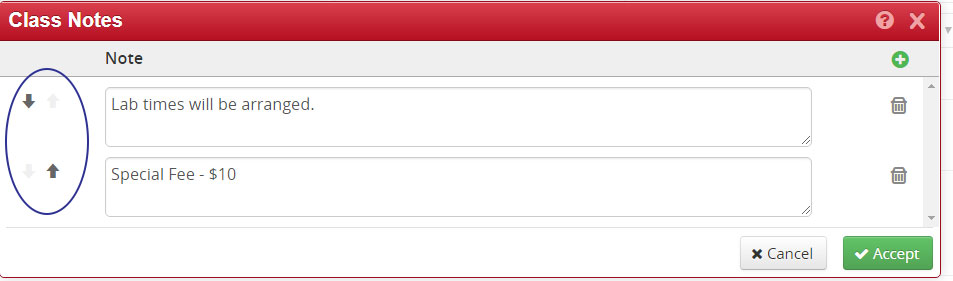
Use the arrows to change the order of the notes and accept any desired changes.
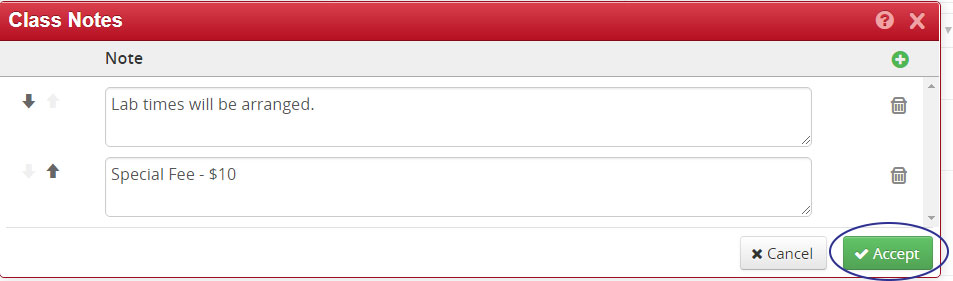
Once edits have been made, click Accept. The main class section editing screen will appear with the listed class notes. To save all changes for the section, click Save Section and initiate workflow.
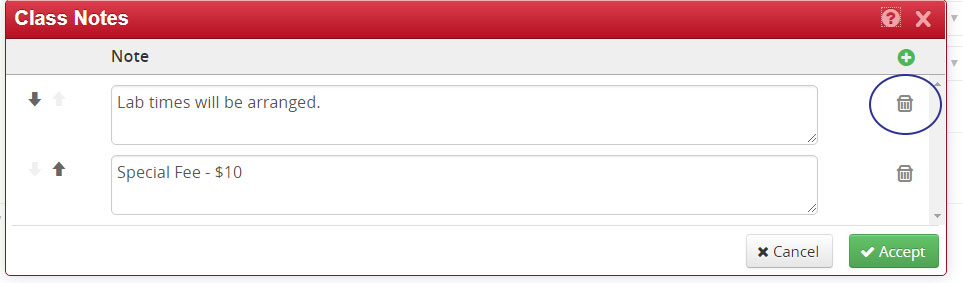
Use the Trashcan to remove a note.
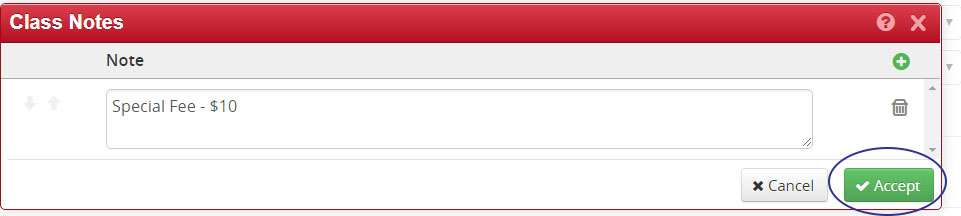
The note will be removed and accept the change.
Save the section to keep the changes made.