Changing, Adding or Removing the Meeting Pattern
To change or add a meeting pattern (schedule): Click on the current schedule
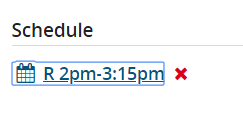
This will open to the screen to edit the section meeting schedule.
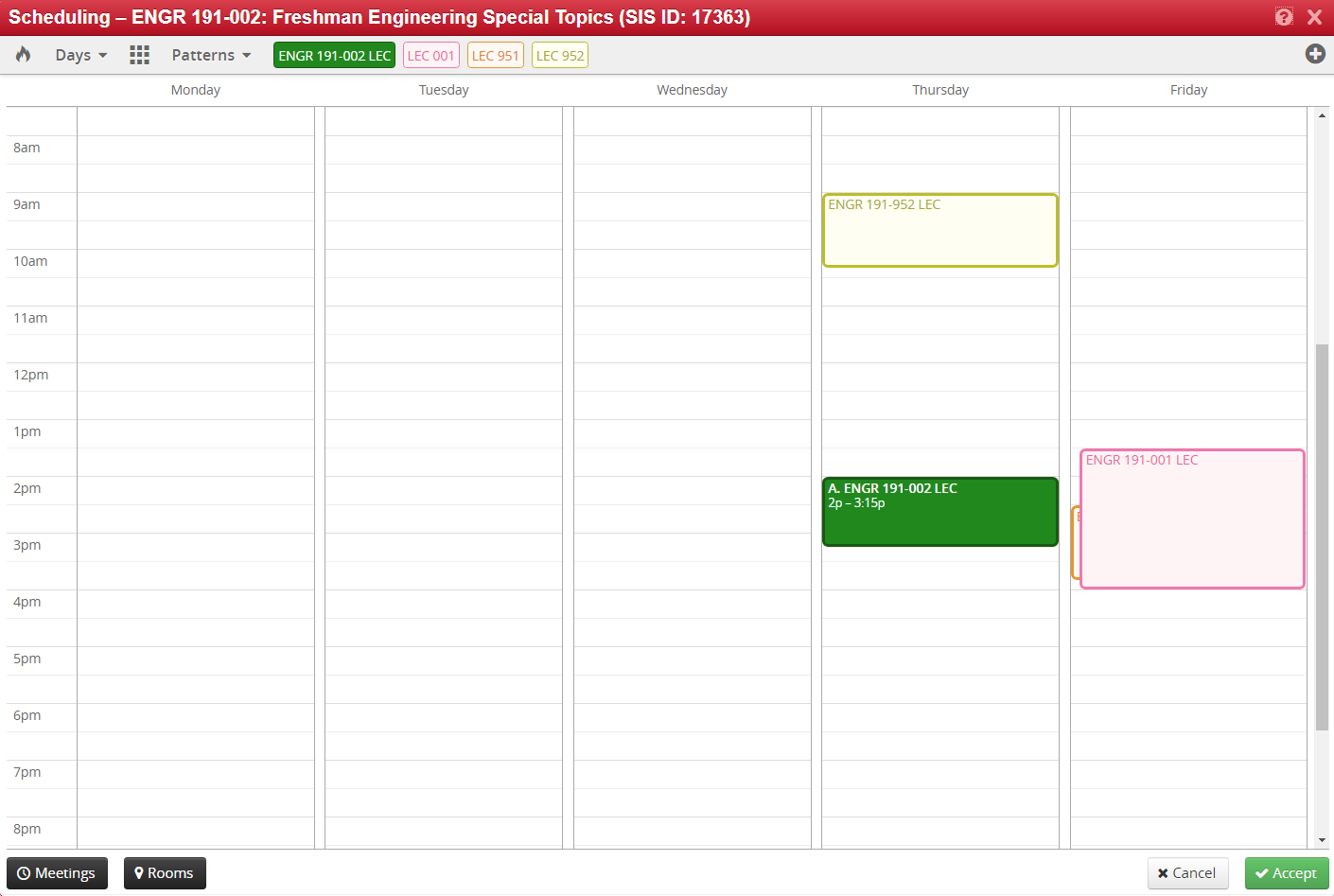
Refer to the standard meeting pattern page for assistance.
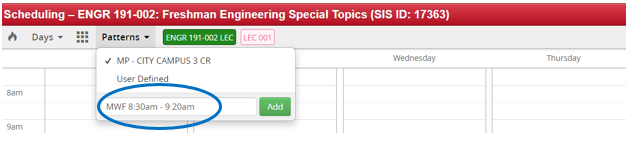
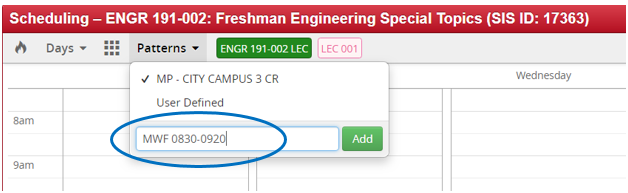
The new meeting pattern can be entered in regular or military time. Click Add and enter the meeting days and time.
OR (MILITARY TIME)
The new meeting pattern is then displayed.
Click Accept.
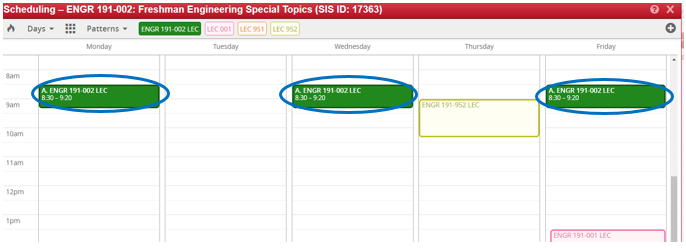
The new meeting pattern is now indicated on the section.

Save section.
Changing Session Dates: For a mini session, enter the section dates in the Custom Dates section.
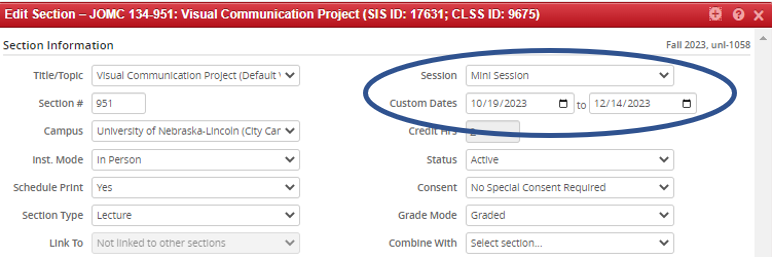
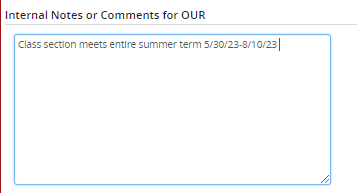
(If a section meets for the entire summer term, the custom date field will revert to mm/dd/yyyy. Please include a note in the Internal Notes section to confirm that the section meets for the entire summer term.)
Changing Meeting Pattern dates: You can update meeting pattern dates for instances where a room is used for only part of the class meeting/or for blended class set-ups. In the schedule choose Meetings.
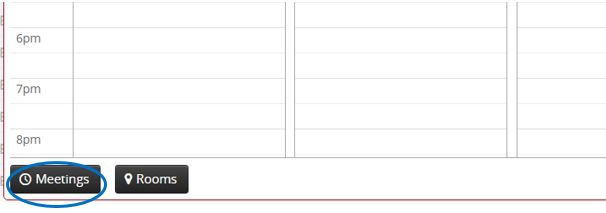
This will open up to the area to edit the section dates.
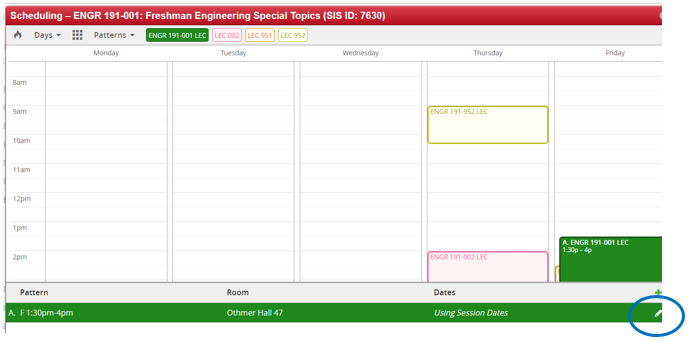
Click on the pencil to edit the meeting dates.
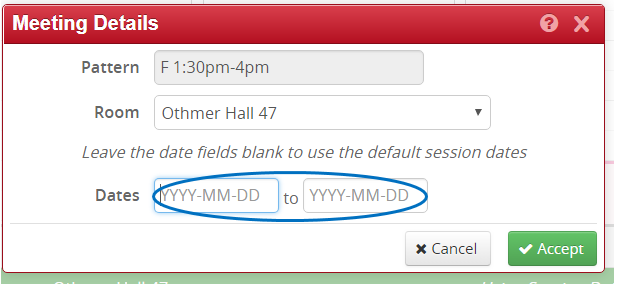
Enter the dates in the format shown
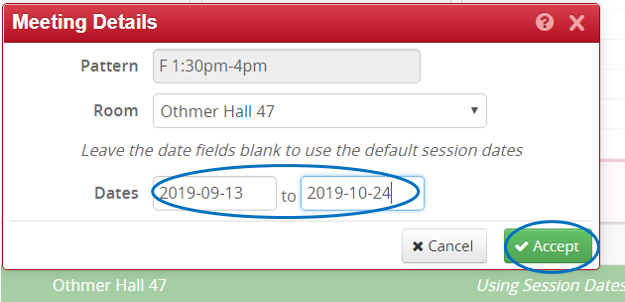
Click Accept.
The dates will now show in the meeting pattern.
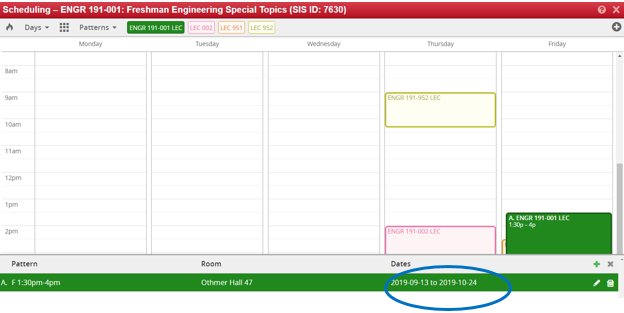
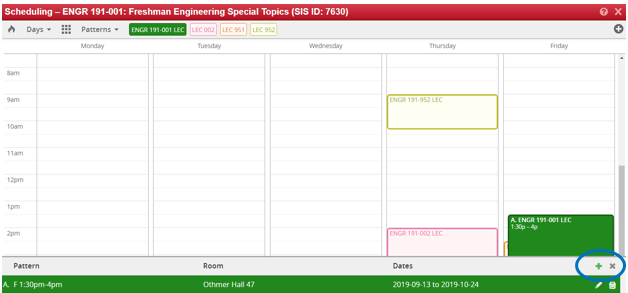
Click the small “x”
Click Accept.
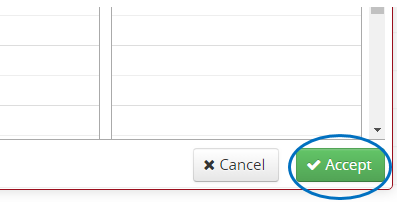
Save the section
The dates can also be entered into the comments area if they are outside the term dates.