Waitlisting a Course in Stellic Scheduler
A course section that is closed may have a waitlist that has been set up by the department. This tutorial will show you how to enroll into the waitlist for a course that has one. If the course section has no more seats available and does not allow you to add yourself to the waitlist, contact the instructor or department of the course for more information.
How to Add yourself to the Waitlist
When selecting a section of a course to add to your plan {https://registrar.unl.edu/class-registration-tutorials/adding-courses-stellic-scheduler/), you may notice that the course section you want to enroll in has a red 0 next to it. This shows that there are no seats available for that section.

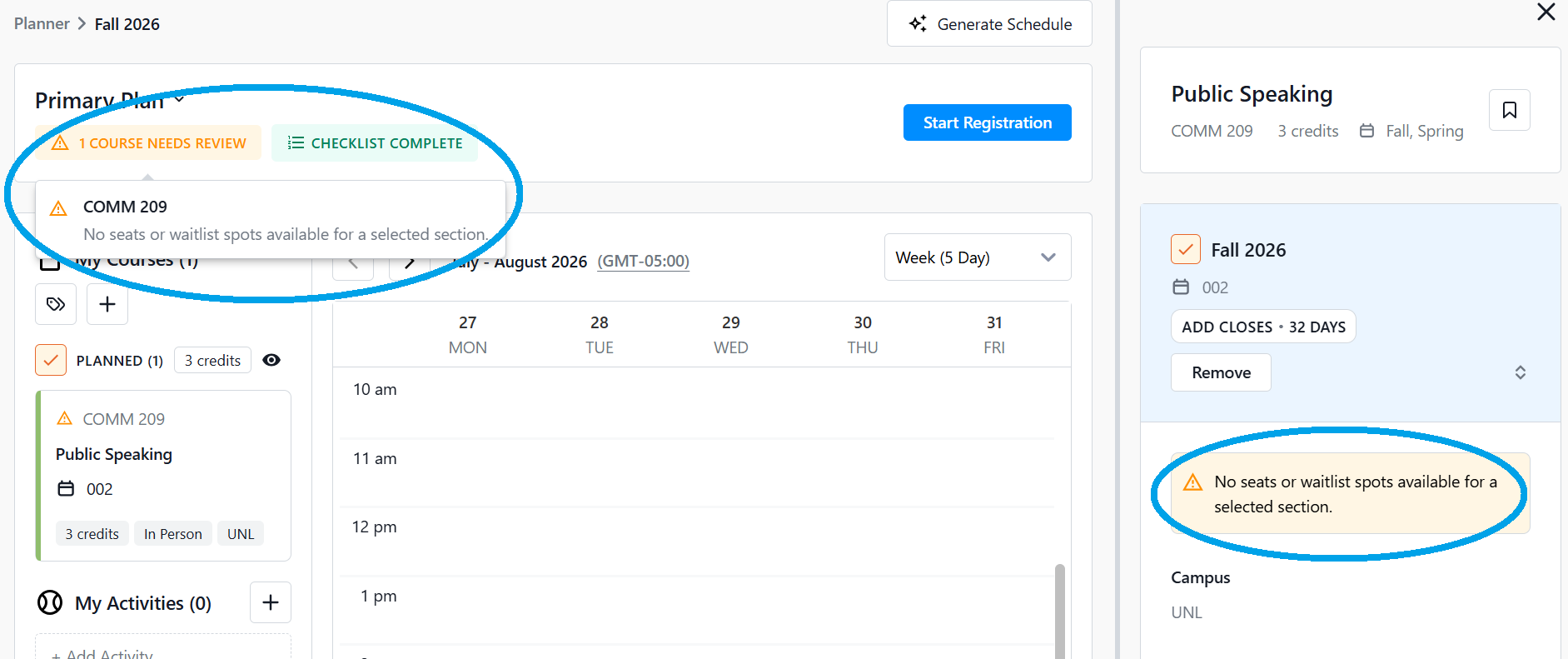
If you select a section with no seats available on the waitlist, you will see a message on the updated Class Details right-hand panel and in the warning message at the top left of your scheduler. You will either need to select another section, or contact the instructor or department of the course section for more assistance.
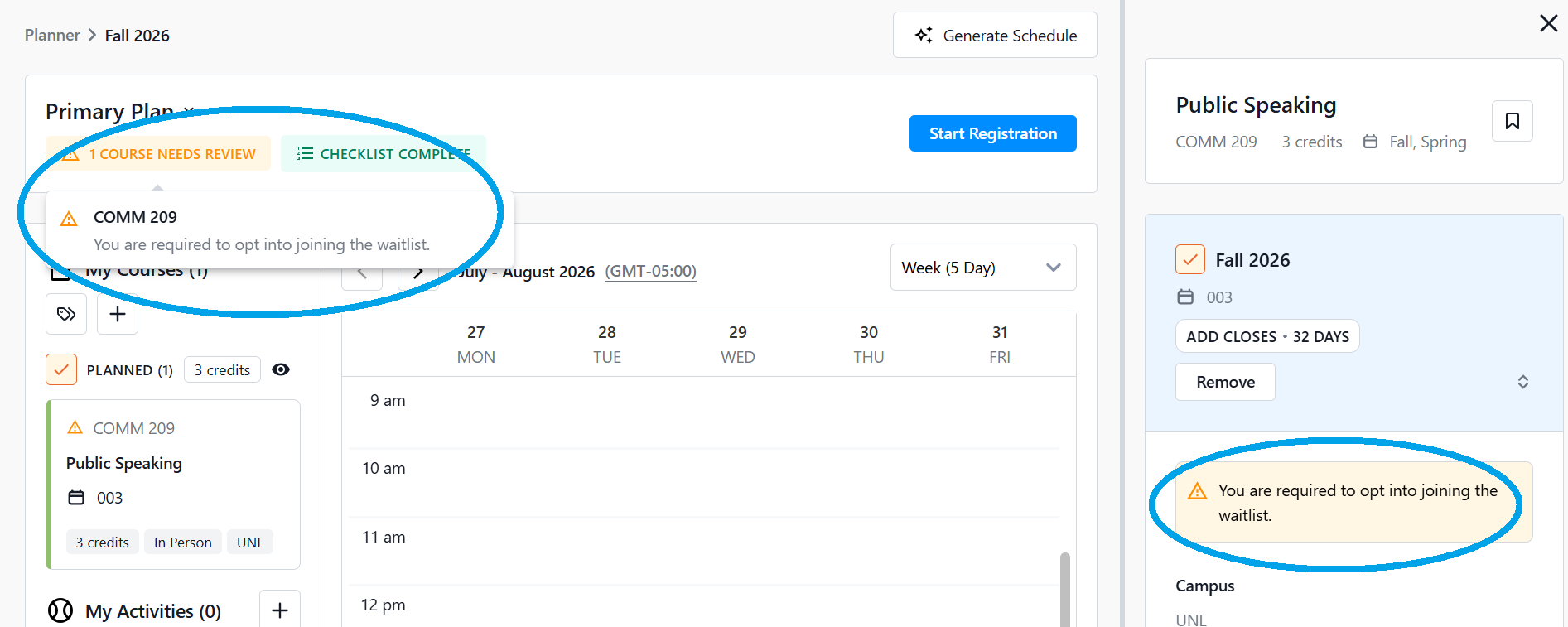
However, if you select a section with a waitlist and there are open spots on the waitlist, you will see a message saying that you must opt into the waitlist. This message will be on the update Class Details panel as well as in the warning message at the top left of your scheduler.
Scroll down on the right-hand Course Details panel until you see a check box stating "Add me to the waitlist if no space available" above the Sections area. Check the box.


Continue adding courses as needed and go to enroll (tutorial at https://registrar.unl.edu/class-registration-tutorials/enrolling-courses-stellic-scheduler/). If you miss adding the waitlist through this way, you can also check this box on the registration page after clicking Register Now. Click Confirm.

You will get a message confirming you have been waitlisted. It will also display your position on the waitlist.

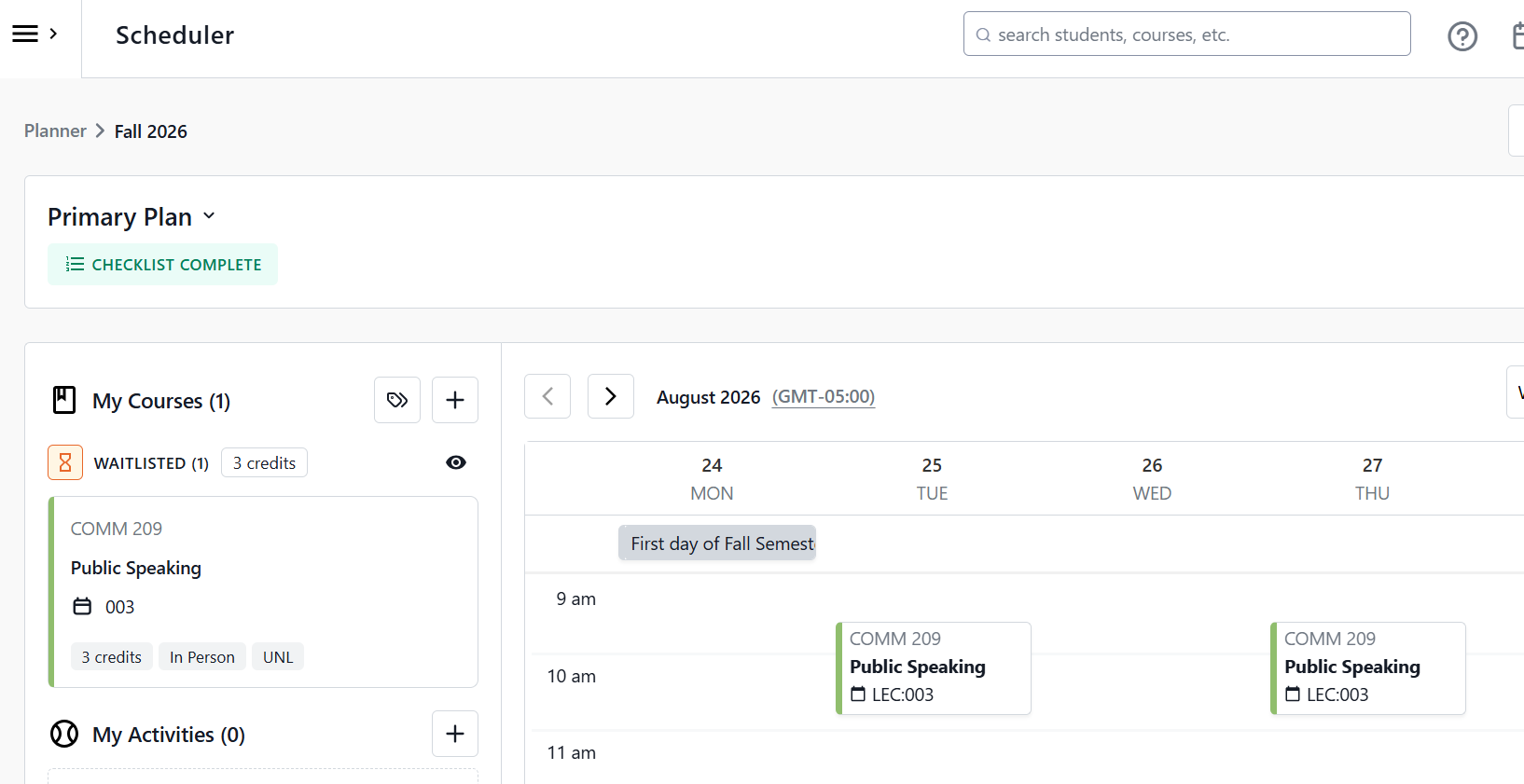
On your Scheduler page, you will now see that under the left-hand panel My Courses, your waitlisted course is under the Waitlisted area with an hour-glass symbol next to it. If you are enrolled from the waitlist, it will move to the Registered section of My Courses.