Editing Grading Basis
Stellic Scheduler does not have an option to update your grading basis at this time. To update your grading basis on a course that allows you to do so, please follow the below instructions.
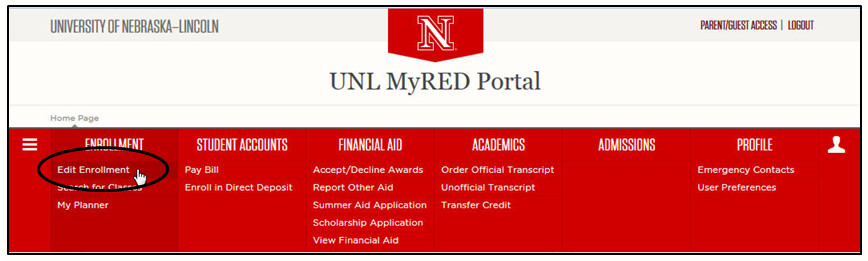
First, log into your MyRED and click the Edit Enrollment option from under the Enrollment drop-down menu.
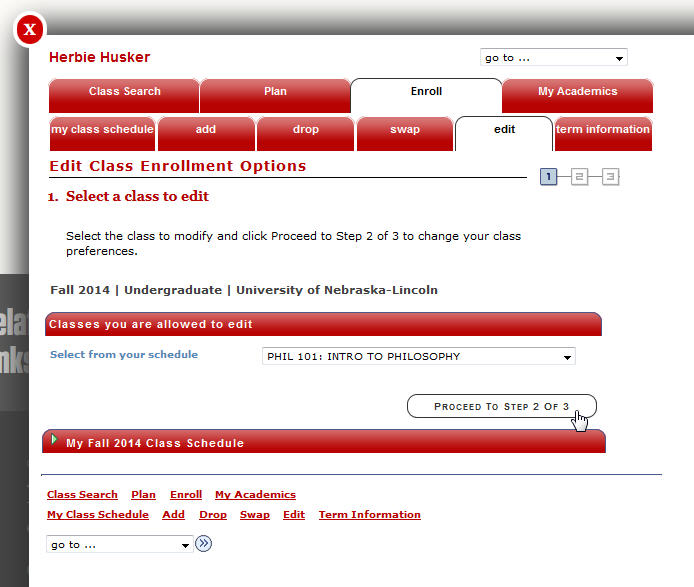
A light box will appear on the page displaying Edit Class Enrollment Options. For a class that allows a change in grading options, it allows you to change a class between pass/no pass and a grade.
Find the class you would like to edit from your class schedule and proceed to step 2.
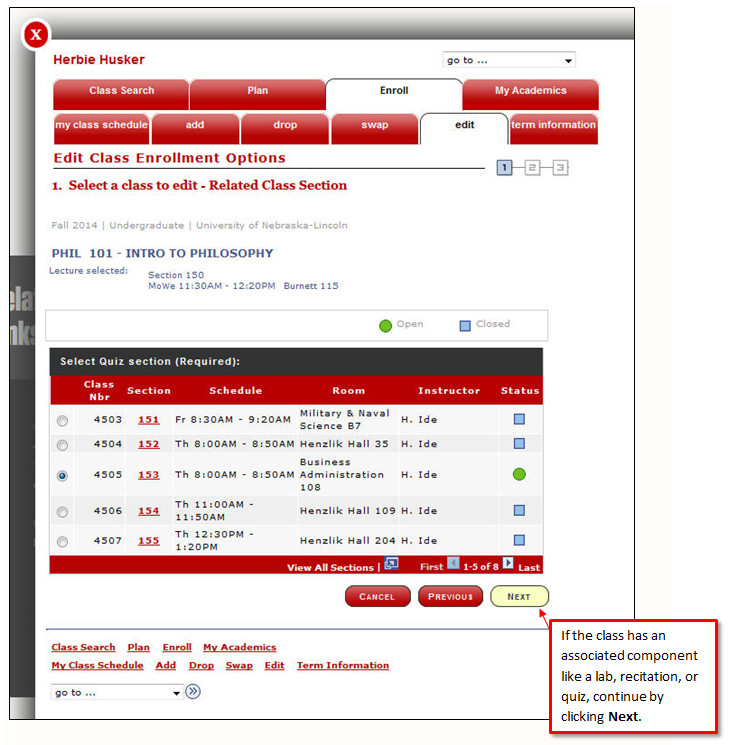
If the class has an associated component like a lab, recitation, or quiz, continue on by clicking Next. Do not edit any information on this page if you are just changing the grading option for the class.
You can change the grading option by using the Grading drop box. When you are done, click Next.
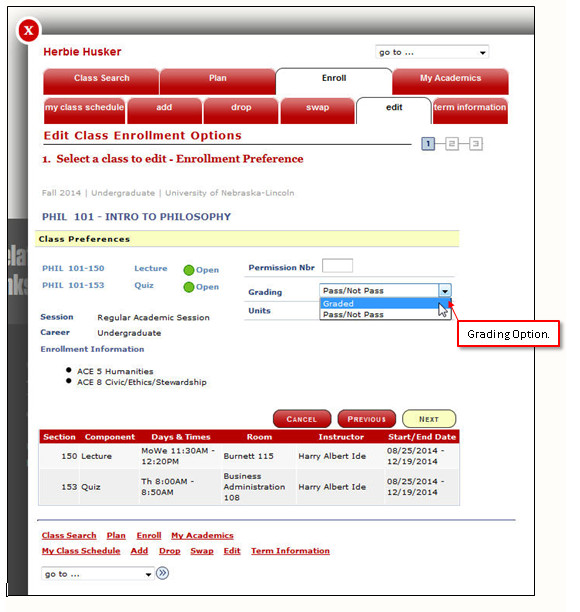
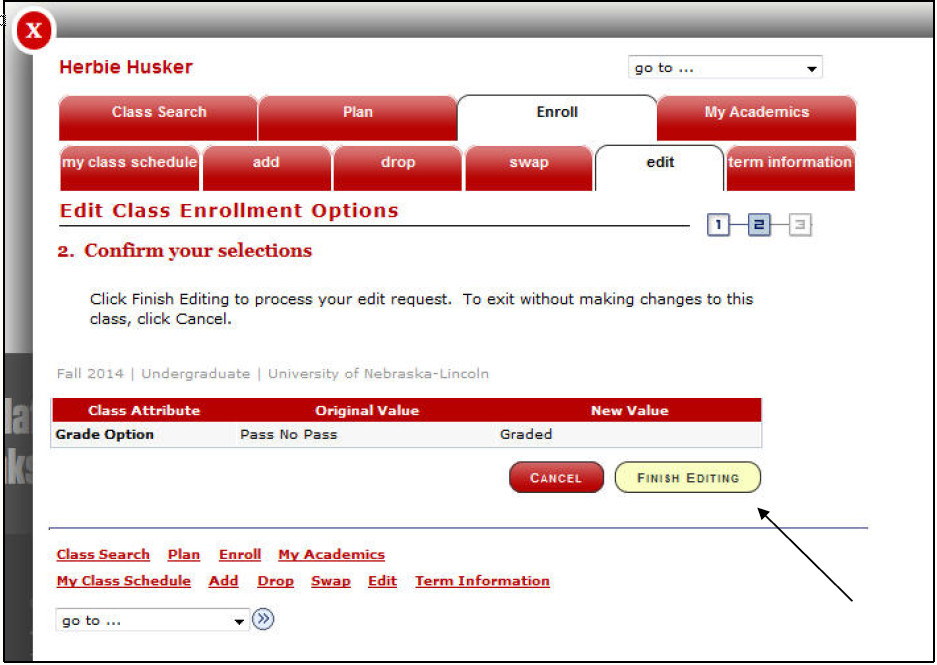
You can review your edits one last time before finalizing. If everything looks good, click on Finish Editing. If you need to go back and make additional edits, click on Cancel. This will bring you back to the beginning when you clicked on the Edit Enrollment link.
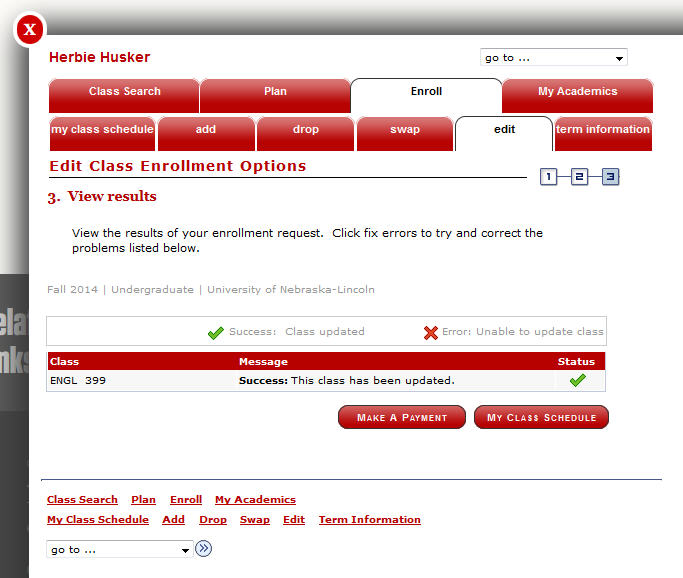
Once the change has been successfully done, you will receive this message: "Success: This class has been updated."