Swapping in Stellic Scheduler
You are able to swap your courses for another course in Stellic Scheduler. This tutorial covers how to swap out of a class you are registered in and into a course you are not registered in. If you would like to see how to swap a recitation or lab, please visit our tutorial at https://registrar.unl.edu/class-registration-tutorials/swapping-enrolled-recitation-or-lab-stellic-scheduler/.
First, you will need to add the course and section you want to swap into to your Stellic Scheduler (see how to do this at https://registrar.unl.edu/class-registration-tutorials/adding-courses-stellic-scheduler/). Make sure any warnings at the top of the screen are resolved and that you meet any pre-requisites. If you have questions about this, please contact your Academic Advisor.
Once you see the new course and section you wish to swap into under the Planned section of your left-hand section, My Courses, you have two options.
Swap from Planned Course
Click on the newly added Planned course tile to open up the course details in the right-hand panel.

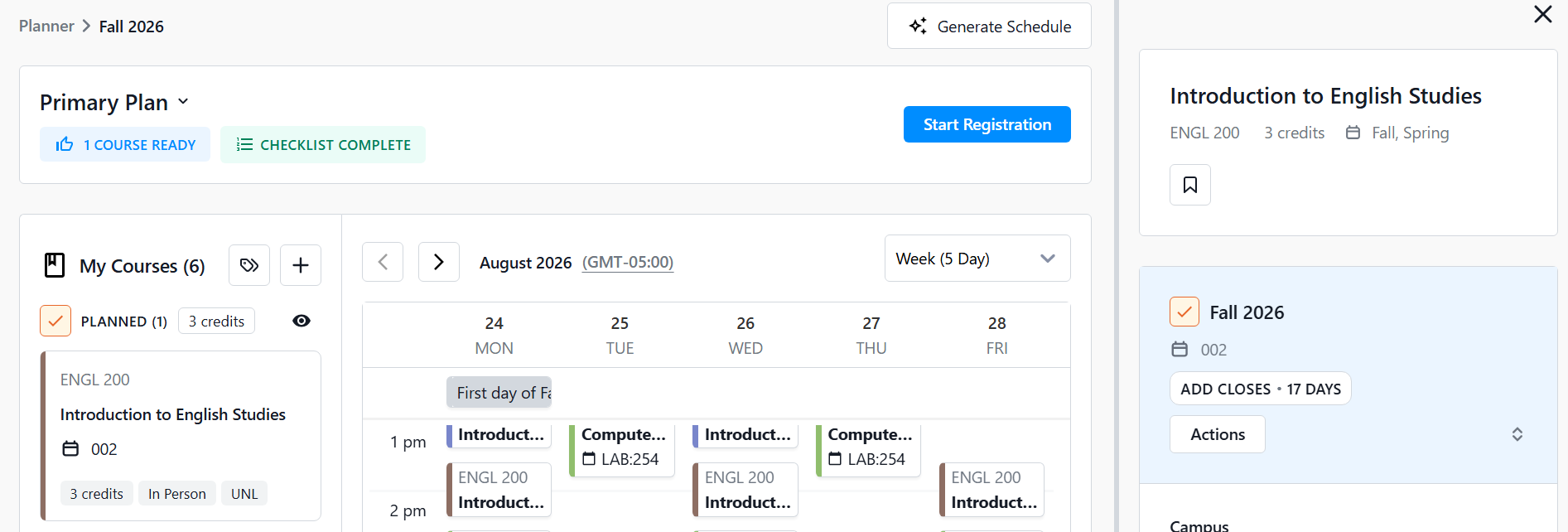
Click the Actions button, and select Register via Swap.

A pop-up window will appear prompting you to select which course you would like to swap out of (drop). Click Select a course to open the list of your registered courses.

Select which course you wish to swap out of (drop). It will then place it in the top portion of the pop-up window in the drop area. You can change it if you need to prior to continuing by clicking the down arrow to the right of the listed course.

Once you are ready, click the Confirm button.

Your swap will process and once it is done, you will get a confirmation message. You can click See details of your request link to open up the details of the transaction.


You will then see that course you dropped has moved to the Planned section under My Courses on the left-hand panel, while the course you swapped into will be in the Registered section.

Swap from Registered Course
Find the course you wish to drop from the Registered section under My Courses on the left-hand panel. Click it to open the course details in the right-hand panel.

Click the Actions button and select Swap Course.

If you only have one course planned, then it will automatically select that in the Swap Course pop-up. If you have more than one course planned, you will get the Swap Course pop-up with a prompt to Select a course. Click the Select a course link to bring up the list of your planned courses and select your chosen course.

If you wish to change the course you want to register in, click the down arrow to the right of the course in the register section.

Once you are ready to go, click the Confirm button. Stellic will process your request.


You will then get a confirmation of the swap success or failure. You can click See details of your request link to open up the details of the transaction.

You will now notice that the course you dropped is in the Planned section on the left-hand panel under My Courses.
