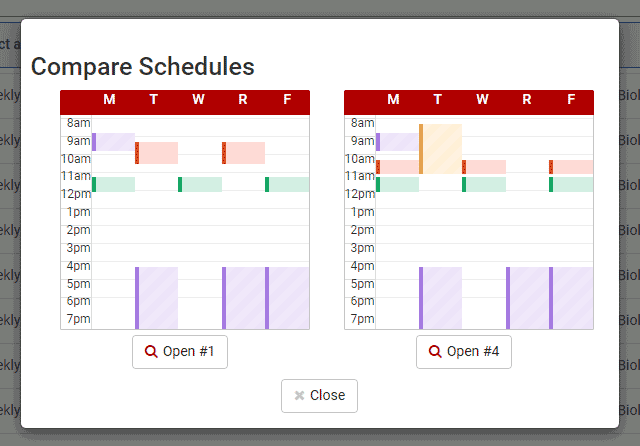
There are multiple ways to view schedules once they have been generated.
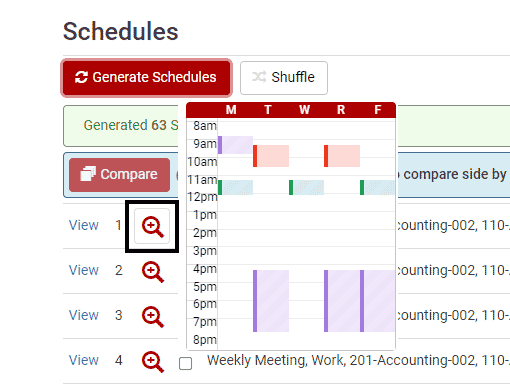
You can view a simplified calendar of the schedule by hovering over the magnifying glass next to each individual schedule.
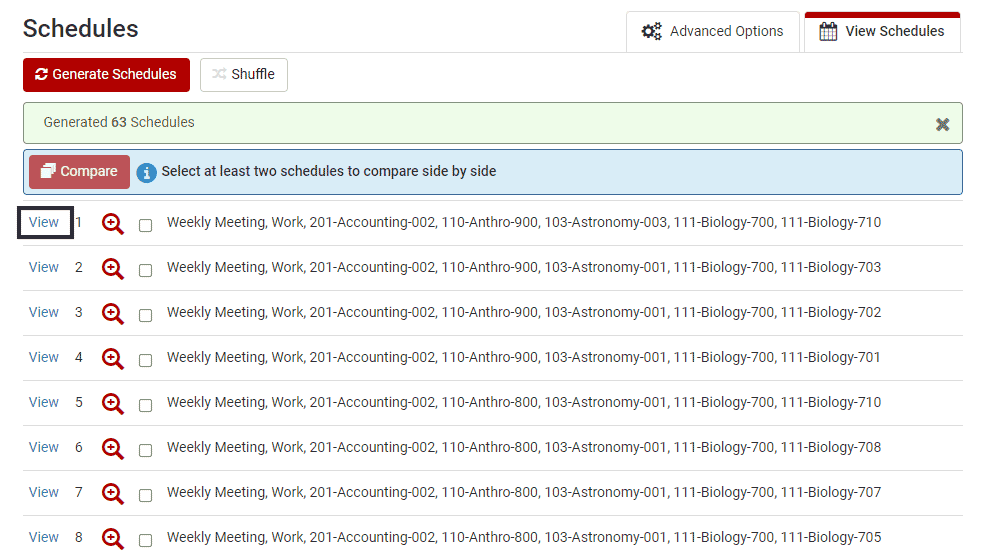
To view the schedule in more detail, select View.
The expanded schedule displays more details in a larger visual format. You may also print and emailpossible schedules.
Below is a schedule including In Person and Online Distance delivery classes.
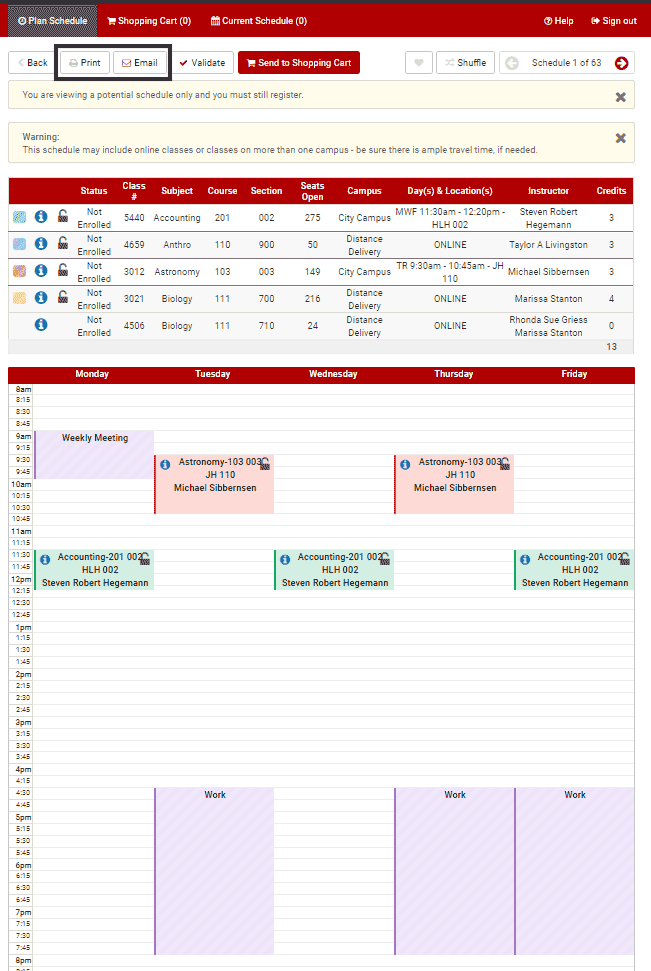
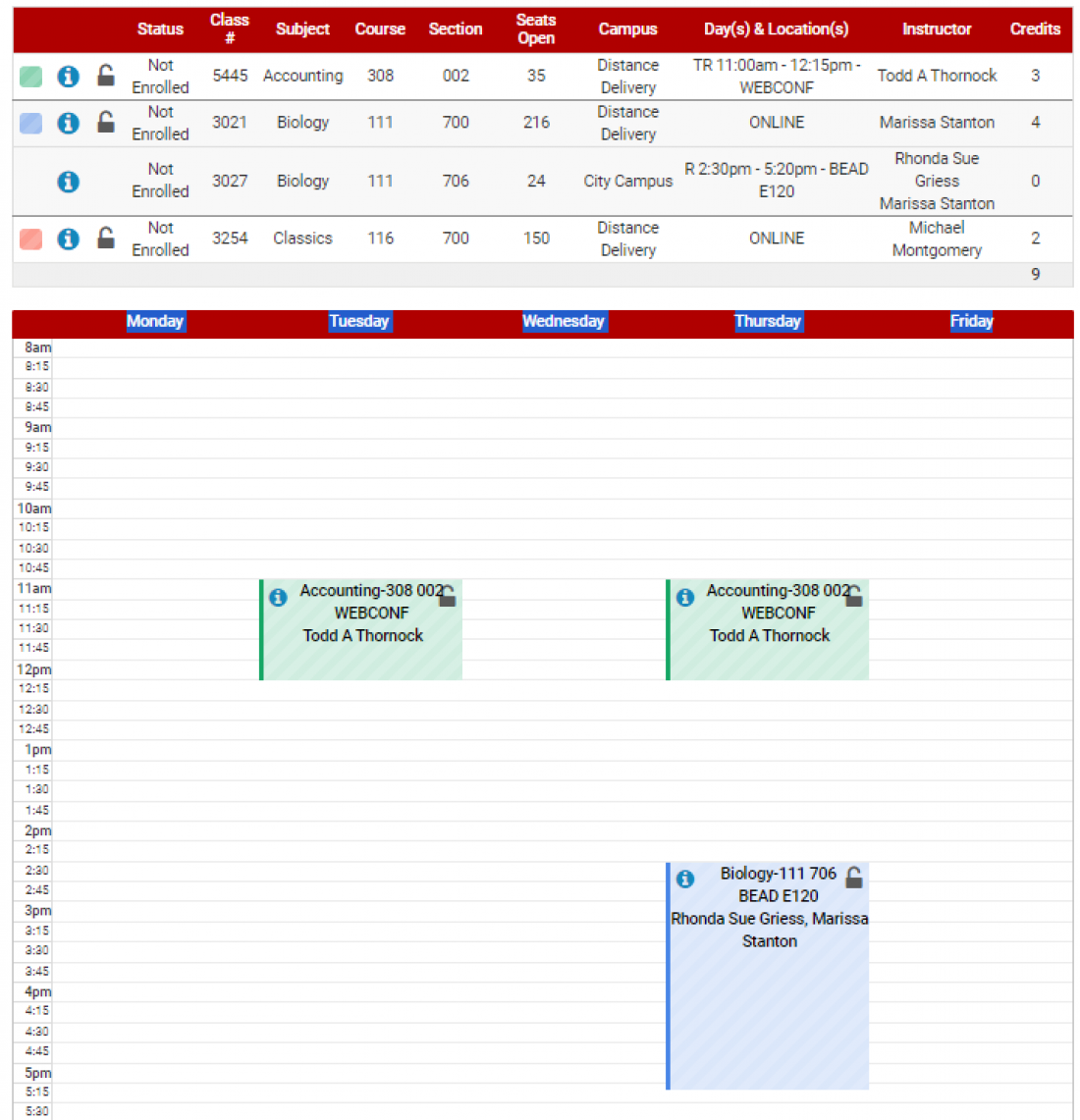
Here is an example of what a class using Web Conferencing delivery looks like in a schedule. Notice that it also has a day and time, but no classroom, as it will use an online platform, like Zoom, to meet at the decided time and day(s).
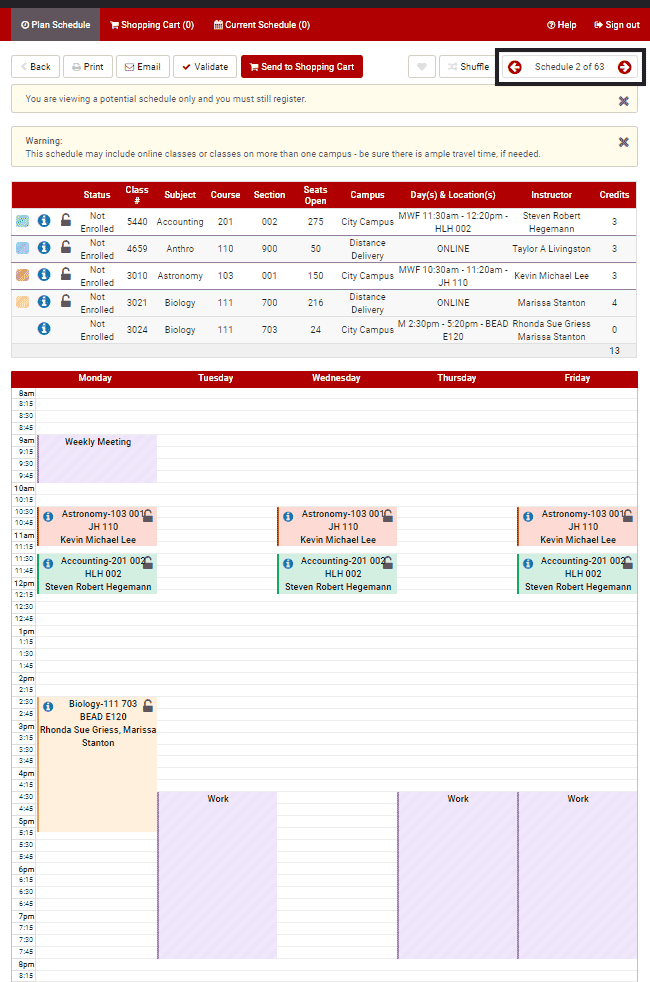
You can view different generated schedules by using the navigation arrows.
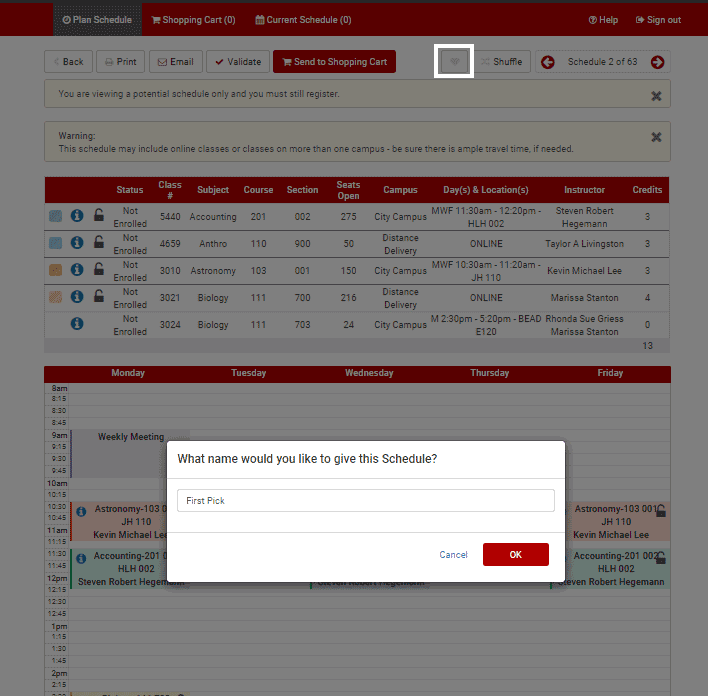
Schedules can be favorited and named by clicking the “heart” button.
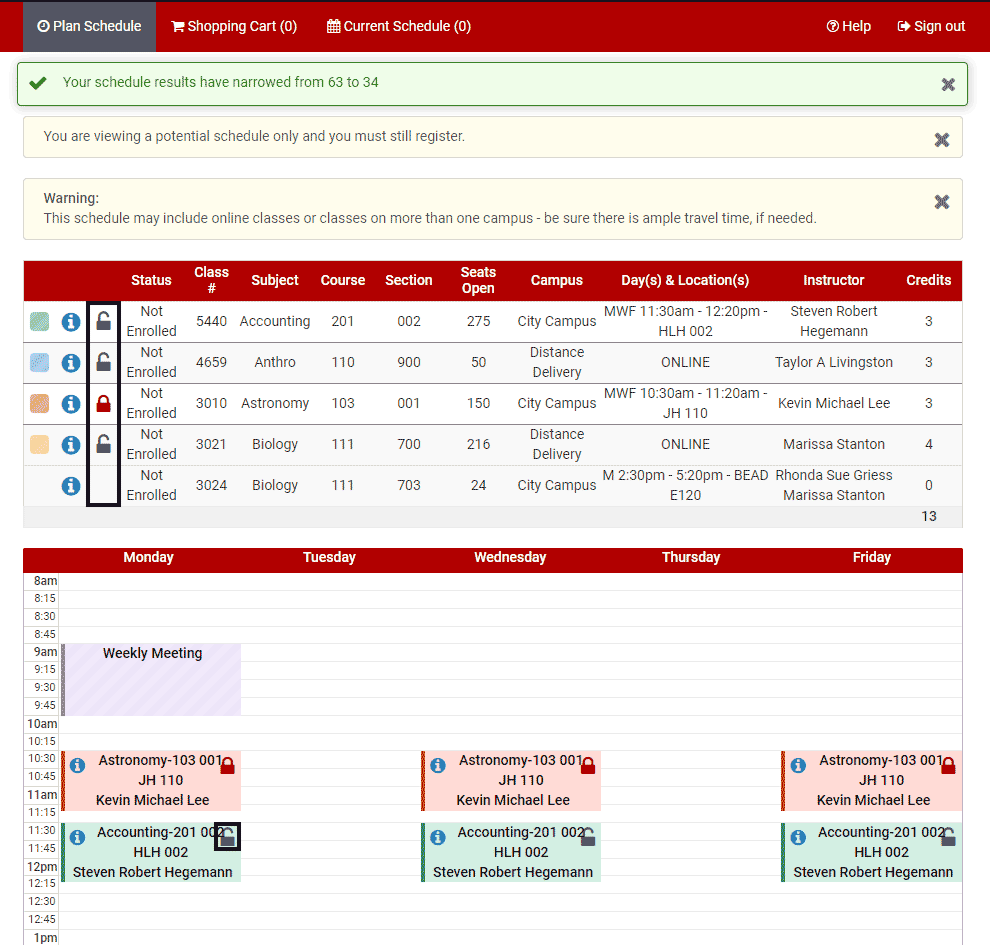
It is also possible to lock down class sections. This can be done by clicking on the “LOCK” for the corresponding class section. As you lock courses, the number of possible schedules can change.
*Note: Online classes will not show in the visual graphic because they do not have an in-person meeting time/location.
You can compare schedules side by side on the Plan Schedule page by checking at least 2 schedules to view, and clicking Compare.
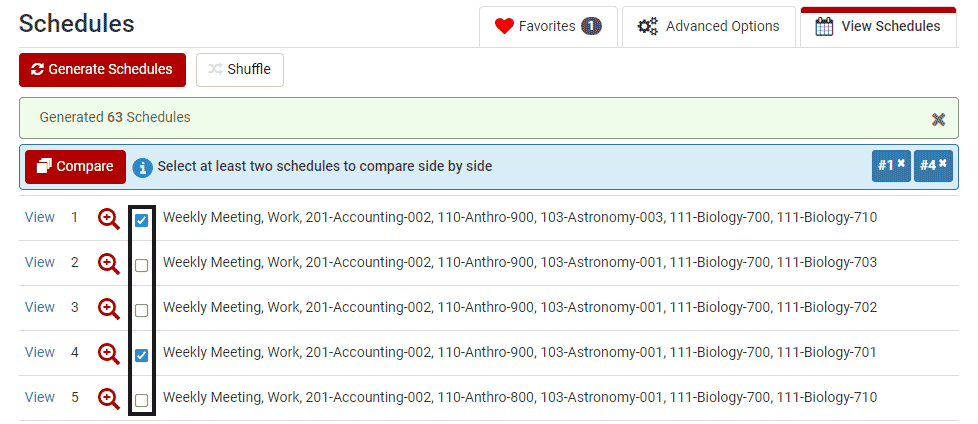
This will give a visual, side by side comparison of the schedules.